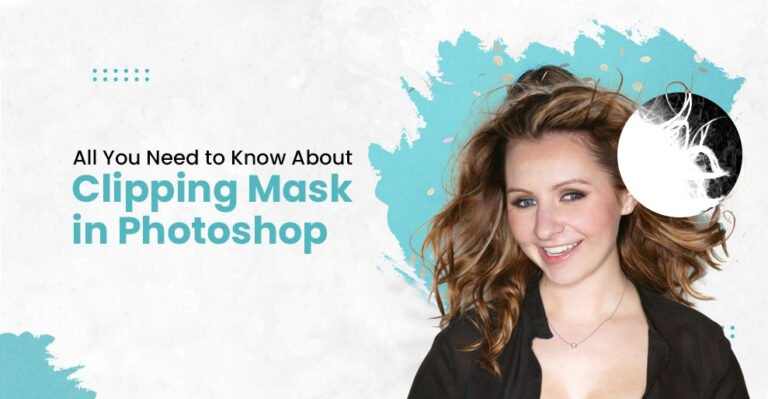
In this beginner-friendly guide, you’ll learn how to create a clipping mask in Photoshop step by step—without technical jargon or guesswork. Whether you’re editing product photos, designing graphics, or creating eye-catching text effects, this essential Photoshop technique will help you achieve clean, professional results quickly and efficiently.
Let’s get started.
What Is a Clipping Mask in Photoshop?
A clipping mask in Photoshop allows you to control the visibility of one layer by using the shape of the layer directly beneath it. The bottom layer acts as a boundary, while the layer above becomes visible only within that defined shape.
In simple terms, the top layer “clips” itself to the base layer below. Any content that extends beyond the edges of the base layer is automatically hidden, creating a clean, precise, and seamless appearance.
Clipping masks are widely used for text effects, texture overlays, image blending, and professional photo editing workflows. Because this method is completely non-destructive, you can edit, move, or replace layers at any time without affecting the original files—making it ideal for both beginners and professional designers.
Read More: Real Estate Photo Editing Services
What Is The Difference Between Layer Mask And Clipping Mask?
Let’s dive into it – layer masks and clipping masks are like dynamic duos in Photoshop, each with its unique role.
Layer Mask:
Imagine a layer mask as a stealthy ninja that conceals parts of a layer. You can use black to hide things or white to reveal them. It’s fantastic for seamlessly blending and concealing elements, but keep in mind it doesn’t alter the actual layer.
Clipping Mask:
On the other hand, a clipping mask is all about teamwork. It seamlessly blends layers based on shapes. The top layer acts like a chameleon, adapting to the form of the layer below. Anything beyond that shape disappears, creating a smooth integration.
Read More: How To Add Drop Shadow To Text in Photoshop
What Is The Clipping Mask Effect?
Imagine the clipping mask effect is like a digital superhero move in Photoshop. It’s when one picture kind of wraps itself around another. So, you’ve got your main image (the boss layer) and then a second one on top (the sidekick layer). The top one takes on the shape of the bottom one, blending in smoothly.
Why does it matter? Well, anything hanging outside the edges of the bottom picture disappears, making things look super neat. It’s like giving your images a snazzy makeover! Perfect for tweaking details, creating cool designs, or adding that extra oomph.
How to Create a Clipping Mask in Photoshop (Step-by-Step)
Creating a clipping mask in Adobe Photoshop is quick, non-destructive, and incredibly effective. Follow these simple steps to apply a clipping mask accurately and achieve clean, professional results.
Step 1: Open Your Files
Launch Adobe Photoshop and open the images or design elements you want to work with. These can be photos, textures, graphics, or text layers.
Step 2: Set Up the Base Layer
Place the layer you want to use as the base on your canvas. This bottom layer will define the visible shape of the clipping mask.
Step 3: Add the Clipping Layer
Create or place another layer above the base layer in the Layers panel. This top layer will be clipped to the shape of the layer below.
Step 4: Position the Top Layer
Use the Move Tool to align and scale the top layer over the base layer area. Make sure it fully covers the section you want to display.
Step 5: Create the Clipping Mask
Right-click on the top layer and select Create Clipping Mask.
Alternatively, use the shortcut:
Windows:
Alt + Ctrl + GMac:
Option + Command + G
Step 6: Review the Result
The top layer will instantly conform to the shape of the base layer. Any excess areas outside the base layer will be hidden automatically.
Step 7: Refine and Adjust
Select the clipped layer and fine-tune its size, position, or rotation using Free Transform (Ctrl/Cmd + T). You can also experiment with blending modes and opacity for creative effects.
Step 8: Experiment Creatively
Try clipping textures into text, images into shapes, or adjustment layers into specific areas to explore advanced design possibilities.
Step 9: Save Your Work
Once you’re happy with the result, save your file in your preferred format and export it for web or print use.
FAQs
What is a clipping mask in Photoshop used for?
A clipping mask in Photoshop is used to control the visibility of one layer based on the shape of another layer. It allows the top layer to appear only within the boundaries of the layer beneath it. This technique is commonly used for text effects, image blending, texture overlays, and clean product photo editing.
What is the difference between a clipping mask and a layer mask in Photoshop?
The main difference between a clipping mask and a layer mask is how they control visibility. A layer mask uses black and white to hide or reveal parts of a single layer, while a clipping mask uses the shape and content of another layer to define what is visible. Clipping masks can also be applied to multiple layers grouped together.
Can I create a clipping mask with multiple layers in Photoshop?
Yes, you can create a clipping mask with multiple layers in Photoshop. Simply group the layers you want to clip, then place the group above the base layer. When you apply the clipping mask, all layers inside the group will be constrained to the shape of the base layer.
How do I release or remove a clipping mask in Photoshop?
To remove a clipping mask in Photoshop, select the clipped layer, right-click on it, and choose Release Clipping Mask. You can also use the keyboard shortcut Alt + Ctrl + G (Windows) or Option + Command + G (Mac) to toggle the clipping mask on or off.
Can I use a clipping mask with text in Photoshop?
Yes, clipping masks work perfectly with text layers in Photoshop. Place an image or texture layer above the text layer, then apply a clipping mask. The image will appear only inside the text shape, making this technique ideal for creative typography and design effects.
Are clipping masks non-destructive in Photoshop?
Yes, clipping masks are completely non-destructive. They do not permanently change or delete any part of your original layers. You can edit, move, or replace clipped layers at any time without losing image quality, making them ideal for professional workflows.
Why are clipping masks important for product photo editing?
Clipping masks are essential in product photo editing because they help apply textures, shadows, color adjustments, and design elements precisely within product boundaries. This results in cleaner visuals, consistent branding, and more professional-looking ecommerce images.
Does using clipping masks affect image quality?
No, using clipping masks does not reduce image quality. Since the technique is non-destructive, your original images remain intact. Image quality only depends on the resolution of the original files and export settings.
Is a clipping mask better than erasing in Photoshop?
Yes, using a clipping mask is better than erasing because it preserves your original image. Erasing permanently removes pixels, while clipping masks allow you to hide and reveal areas without damaging the file, giving you more flexibility and control.
Case Study: How Clipping Masks Improved Product Image Consistency and Conversions
Client Background
An online fashion retailer similar like next selling apparel and accessories was struggling with inconsistent product images across their website. While the products themselves were high quality, the visuals lacked uniformity—textures, patterns, and color overlays appeared uneven across different product categories.
The Challenge
The client faced several issues:
Inconsistent texture placement on clothing images
Difficulty applying patterns and color adjustments evenly
Product images that looked unprofessional on category and listing pages
Lower engagement and conversion rates due to visual inconsistency
They needed a non-destructive, scalable solution that allowed precise control over image elements without re-editing files from scratch.
The Solution
Our editing team applied clipping masks in Photoshop to streamline the workflow and improve visual accuracy.
Using clipping masks, we were able to:
Apply textures and patterns precisely within garment shapes
Add color adjustments without affecting backgrounds
Maintain consistent lighting and detail across product images
Easily revise designs without damaging original files
This approach allowed fast revisions and ensured every product followed the same visual standard.
The Results
After implementing clipping mask–based editing:
✅ Product image consistency improved across the entire catalog
✅ Editing time per image was reduced significantly
✅ Website visuals appeared more professional and brand-aligned
✅ The client reported higher customer engagement and improved conversion rates
Most importantly, the client could scale their product listings faster while maintaining quality.
Key Takeaway
Clipping masks are more than just a Photoshop technique—they are a professional image-editing solution for ecommerce brands that demand accuracy, flexibility, and consistency. When applied correctly, clipping masks help transform ordinary product photos into polished, conversion-ready visuals.
Need Professional Clipping Mask Services?
Creating clean, accurate clipping masks in Photoshop takes time, skill, and attention to detail—especially when you’re handling product images at scale.
If you want pixel-perfect results without the hassle, our professional editing team at Clipping Area is here to help. We specialize in high-quality clipping masks for ecommerce, fashion, real estate, and commercial photography—delivering consistent, conversion-ready images every time.
Why Choose Our Clipping Mask Service?
✔️ Hand-drawn clipping paths for precise edges
✔️ Non-destructive editing with Photoshop best practices
✔️ Fast turnaround and scalable workflows
✔️ Dedicated quality control on every image
👉 Get a free trial or request a quote today and see how professionally edited images can elevate your brand and boost conversions.