How to Add Drop Shadow to Text in Photoshop (Beginner Guide)
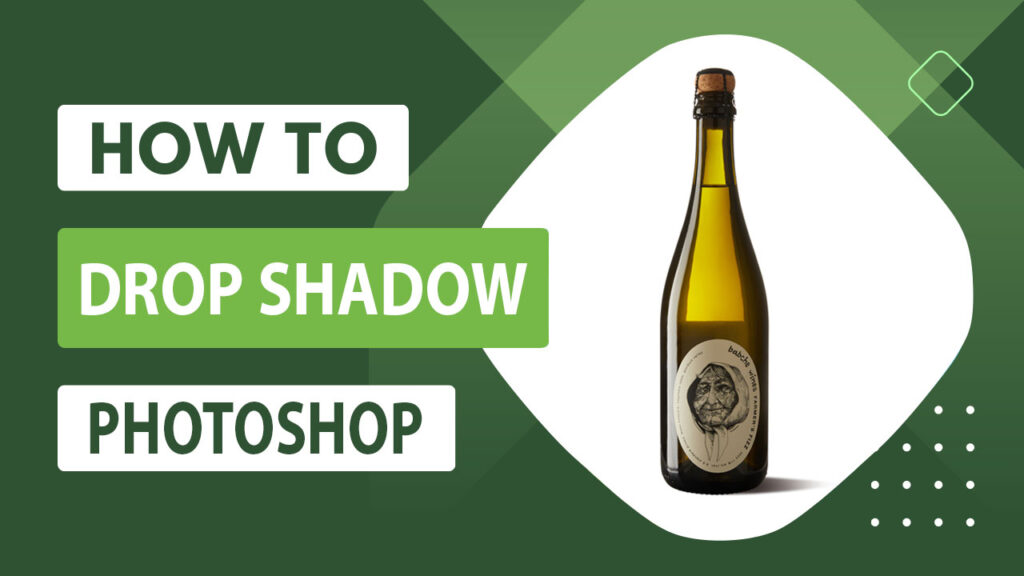
How to add drop shadow to text in Photoshop is a basic but powerful design skill that helps make text more visible, attractive, and professional. Drop shadows create depth, improve contrast, and make text stand out from backgrounds in posters, banners, social media graphics, and website designs.
In this first part, you will learn:
-
What drop shadow is
-
Why designers use it
-
When to use it correctly
-
The basic method to add drop shadow to text in Photoshop
This guide is perfect for beginners and anyone who wants clean, readable text effects.
What Is Drop Shadow in Photoshop?
A drop shadow is a visual effect that creates the illusion of depth by placing a soft shadow behind text or objects. It simulates how light falls on a real object, making the text appear raised above the background.
In Photoshop, drop shadow is applied as a Layer Style, which means:
-
It is non-destructive
-
You can edit it anytime
-
It does not reduce image quality
Drop shadows are commonly used for:
-
Headings and titles
-
Logos
-
Website banners
-
Thumbnails
-
Social media posts
Why Use Drop Shadow on Text?
Using drop shadow on text helps to:
-
Improve readability on busy or colorful backgrounds
-
Separate text from the background
-
Add depth and dimension
-
Make designs look more professional
-
Highlight important words or calls to action
Without a shadow, text can blend into the background and become hard to read. A subtle shadow adds contrast and visual clarity.
When Should You Use Drop Shadow?
Drop shadow works best when:
-
The background is complex or bright
-
The text needs emphasis
-
The design needs depth
-
You want to guide the viewer’s eyes
Avoid heavy shadows on:
-
Very small text
-
Minimal or flat designs
-
Light text on white backgrounds
Good shadows should be subtle and natural, not dark or harsh.
How to Add Drop Shadow to Text in Photoshop (Basic Method)
Follow these simple steps to apply a drop shadow to text in Photoshop.
Step 1: Open Your File in Photoshop
Launch Adobe Photoshop and open the image or design file where you want to add a drop shadow to your text.
Step 2: Create or Select the Text Layer
Use the Text Tool (T) to type your text.
If the text already exists, click on the text layer in the Layers Panel to make it active.
Step 3: Open Layer Style
You can open the Layer Style in two ways:
-
Double-click on the text layer
OR -
Click the fx icon at the bottom of the Layers Panel and select Drop Shadow
Step 4: Adjust Drop Shadow Settings
In the Layer Style window, adjust these options:
-
Blend Mode: Multiply
-
Opacity: 30–50%
-
Angle: Set the light direction
-
Distance: Controls how far the shadow appears
-
Spread: Controls shadow thickness
-
Size: Controls softness
Change the values until the shadow looks natural and balanced.
Step 5: Preview and Apply
Watch the live preview on your canvas.
When satisfied, click OK to apply the effect.
Step 6: Save Your File
Save your project in PSD format so the drop shadow remains editable.
Common Beginner Mistakes
Avoid these mistakes when adding drop shadow:
-
Using very dark shadows
-
Adding too much blur
-
Placing the shadow too far from the text
-
Using shadow on very small fonts
-
Overusing multiple effects at once
Subtle shadows look more professional than heavy ones.
What You’ll Learn in Part 2
In Part 2, you will learn:
-
Best drop shadow settings for different designs
-
How to create 3D shadow text in Photoshop
-
How to control perspective and depth
-
Advanced shadow techniques
Advanced Drop Shadow Settings & 3D Shadow Text in Photoshop
In Part 1, you learned the basics of how to apply a drop shadow to text in Photoshop
Now in Part 2, we’ll go deeper and show you:
-
Best professional drop shadow settings
-
How to control realism and depth
-
How to create 3D shadow text
-
How to add perspective to shadows
-
Advanced techniques used by designers
These methods are useful for posters, banners, thumbnails, and professional graphics.
Best Drop Shadow Settings for Professional Results
There is no single “perfect” setting, but these values work well for most designs:
Recommended settings:
-
Blend Mode: Multiply
-
Opacity: 30%–50%
-
Angle: 120°–140° (depends on light direction)
-
Distance: 5–15 px
-
Spread: 0%–10%
-
Size: 10–20 px
Tips:
-
Small text → use smaller Size and Distance
-
Large headlines → use larger Size and Distance
-
Light background → use darker shadow
-
Dark background → use lighter shadow
Always keep shadows subtle and natural.
How to Create 3D Shadow Text in Photoshop
3D shadow text makes typography look raised and dimensional.
Step 1: Create a New Document
Open Photoshop and create a new file.
Step 2: Add Your Text
Use the Text Tool (T) to type your text.
Choose a bold font for best 3D effect.
Step 3: Duplicate the Text Layer
Right-click the text layer → Duplicate Layer.
Step 4: Move the Shadow Layer
Select the duplicated layer and move it slightly down and to the side using arrow keys.
Step 5: Apply Color Overlay
Double-click the duplicated layer → check Color Overlay.
Choose black or dark gray for the shadow.
Step 6: Add Drop Shadow Blur
Enable Drop Shadow on the shadow layer and increase the Size slightly to soften it.
Step 7: Adjust Opacity
Lower the opacity (40%–70%) to make the shadow look realistic.
Step 8: Add Perspective
Press Ctrl+T (Cmd+T on Mac) → right-click → choose Skew or Distort.
Stretch the shadow slightly to match light direction.
Step 9: Group or Merge
Group both layers (Ctrl+G) for easy movement or merge when finished.
How to Create Long Shadow Text (Modern Style)
Long shadow text is popular in:
-
App UI
-
Social media posts
-
Infographics
Steps:
-
Duplicate text layer multiple times
-
Move each copy slightly down and right
-
Merge shadow layers
-
Apply slight blur
-
Reduce opacity
This creates a smooth long shadow effect.
How to Match Shadow with Background Light
To make shadows realistic:
-
Match the shadow angle with the light source
-
Use softer shadows for bright light
-
Use sharper shadows for strong light
-
Avoid placing shadows randomly
Shadows should always follow one consistent light direction.
Advanced Shadow Techniques
1. Using Smart Objects
Convert your text layer to a Smart Object before applying shadows.
This keeps effects editable and non-destructive.
2. Layer Mask Shadow Control
Use a Layer Mask to fade shadows gradually instead of using uniform blur.
3. Multiple Shadow Layers
Apply two drop shadows:
-
One soft
-
One sharp
This creates depth and realism.
Common Mistakes in Advanced Shadow Design
Avoid:
-
Very dark black shadows
-
Shadows too far from text
-
Over-blurring
-
Different shadow angles on same design
-
Using shadows on tiny text
Professional shadows are subtle, not dramatic.
When to Use Advanced Drop Shadows
Advanced drop shadows work best for:
-
Headings and titles
-
Posters and banners
-
Logo concepts
-
Thumbnails
-
Hero images
They are not recommended for body text.
How to Add Professional Text Effects in Photoshop
Photoshop allows you to combine drop shadows with other text effects for more impact.
Step-by-Step: Apply Text Effects
-
Select your Text Layer
-
Click the fx icon in the Layers panel
-
Choose one or more effects:
-
Stroke
-
Bevel & Emboss
-
Gradient Overlay
-
Inner Shadow
-
Adjust each effect carefully
-
Preview and click OK
Best Text Effect Combinations
1. Drop Shadow + Stroke
Best for:
-
Posters
-
Thumbnails
-
Banners
Adds both contrast and depth.
2. Drop Shadow + Bevel & Emboss
Best for:
-
Logo text
-
Headings
-
3D-style designs
Creates raised, realistic typography.
3. Drop Shadow + Gradient Overlay
Best for:
-
Modern UI text
-
Social media graphics
-
Infographics
Adds color depth and style.
Common Problems & Solutions
Problem: Shadow looks too dark
Solution: Lower opacity and use dark gray instead of black.
Problem: Shadow is too far from text
Solution: Reduce Distance value.
Problem: Text looks blurry
Solution: Reduce Size and Spread.
Problem: Shadow angle looks wrong
Solution: Match angle with light direction in the image.
Case Example: Improving Text Visibility with Drop Shadow
Project Type: Marketing banner design
Industry: Ecommerce promotion
Text Style: Bold headline over product image
Before
-
Text blended into the background
-
Low contrast
-
Hard to read on mobile
-
No visual depth
Editing Process
-
Applied subtle drop shadow
-
Added light stroke
-
Matched shadow angle to image light
-
Adjusted opacity for realism
After
-
Text became clearly readable
-
Design looked more professional
-
Visual hierarchy improved
-
Message stood out instantly
Key Insight:
The text itself did not change.
The shadow and effects changed how users perceived clarity and quality.
When Manual Text Effects Become Time-Consuming
Manual editing becomes difficult when you handle:
-
Bulk marketing graphics
-
Product labels
-
Thumbnails
-
Promotional banners
-
Social media posts
Professional editing ensures:
-
Consistent effects
-
Accurate shadows
-
Faster turnaround
-
Non-destructive workflow
Drop Shadow Text in Photoshop – FAQs
Can I edit the drop shadow later?
Yes. Drop shadows remain editable as long as the text layer is not rasterized.
What is the best drop shadow setting for text?
Opacity 30–50%, Size 10–20 px, Blend Mode Multiply works well for most designs.
Can I apply the same shadow to multiple text layers?
Yes. Copy and paste Layer Styles or convert text layers into Smart Objects.
Does drop shadow reduce image quality?
No. It is a non-destructive layer effect and does not affect resolution.
Is drop shadow suitable for professional design?
Yes. When used subtly and correctly, drop shadows improve clarity and visual hierarchy.
What text styles work best with drop shadow?
Bold and medium-weight fonts work best. Very thin fonts may lose clarity.
Final Tips for Professional Results
-
Always keep shadows subtle
-
Match shadow angle with light direction
-
Avoid pure black shadows
-
Do not overuse effects
-
Test readability on mobile screens
Professional shadows should enhance, not overpower, the text.
If you are working with hundreds or thousands of images and need consistent shadow effects:
👉 Try our Shadow Making Services for fast, professional, and scalable results trusted by global brands.
We provide:
-
Natural-looking shadows
-
Non-destructive editing
-
High-volume capacity
-
Consistent quality