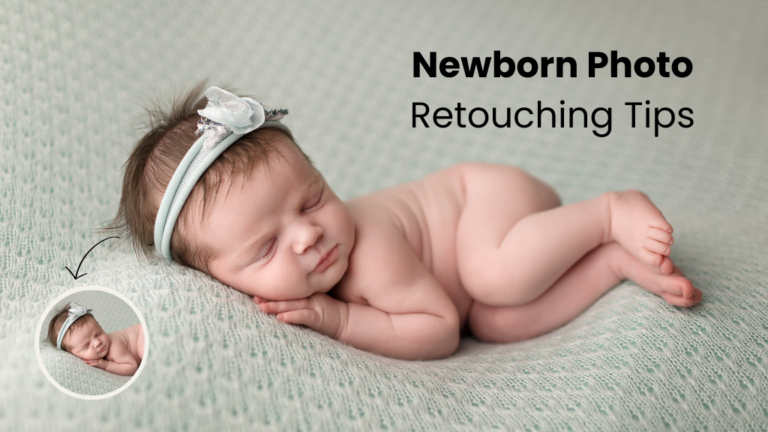
Newborn photo retouching is the gentle editing that turns a good baby photo into a picture a family keeps for life. Babies in their first two weeks often have red patches, peeling skin, tiny spots and a yellow tint. Good retouching softens these things without changing who the baby is.
The goal is simple. The baby should look like themselves on their best day. Not plastic. Not painted. Just soft, calm and real.
In this guide, you will learn 10 clear steps on newborn photo retouching tips that professional editors use every day. You will also see the common mistakes, the right tools, and how long each image should take.
Quick answer: how do you retouch newborn photos naturally?
To retouch newborn photos naturally, follow this order:
- Cull and pick your best frames.
- Fix white balance and exposure.
- Even out red and yellow skin tones.
- Remove baby acne, milk spots and flaky skin.
- Smooth skin softly, keeping texture.
- Clean up hair, fuzz and lint on wraps.
- Fix composites and hand support.
- Dodge and burn for soft shape.
- Add a gentle color grade.
- Sharpen the eyes and lashes, then export for print and web.
The rule behind every step: if a parent can tell the photo was edited, you went too far.
What is newborn photo retouching?
Newborn photo retouching is the editing work done after a newborn session to clean up skin, balance color and add a soft, finished look. It sits between basic photo editing (exposure and color) and full beauty retouching. With babies, you do far less than you would on an adult portrait.
Think of it as tidying, not changing. You remove things that will fade in a few weeks, like baby acne or peeling skin. You keep things that make the baby who they are, like birthmarks, the shape of the nose, or the little creases on the hands.
Why natural editing matters more with babies
Parents look at newborn photos for decades. A heavy edit might look nice on social media today. In ten years, it can look dated and fake.
Here is why a natural approach wins:
- Parents want the real baby. They want to remember the exact face they held in the hospital.
- Baby skin is already soft. Heavy smoothing removes the fine texture that makes skin look real.
- Prints show everything. Over-edited skin looks waxy on a large canvas or album page.
- Trends fade. Strong filters and heavy matte looks age fast. Clean, soft color lasts.
What you should fix and what you should keep
A quick rule we use in our studio: fix what is temporary, keep what is permanent.
| Fix (temporary) | Keep (permanent or personal) |
|---|---|
| Baby acne and milk spots (milia) | Birthmarks, unless parents ask |
| Peeling or flaky skin | Natural face shape |
| Strong red patches from crying | Dimples and skin folds |
| Yellow tint from jaundice | Eye color and hair color |
| Scratches from tiny nails | Real body proportions |
| Lint, fuzz and stray fibers on wraps | Natural skin texture |
| Visible hands holding the baby in composites | Hair whorls and baby hair |
If you are not sure, ask the parents before the session. Some families want a birthmark kept. Others want it softened. It is their memory, so it is their choice.
Tools and setup before you start
You do not need fancy software for newborn photo editing. Most pros use two tools:
- Adobe Lightroom Classic for culling, white balance, exposure and batch color.
- Adobe Photoshop for skin cleanup, composites, dodge and burn, and final polish.
A pen tablet (like a Wacom or XP-Pen) helps a lot. It gives you soft, controlled brush strokes on delicate skin. A mouse works, but a pen is faster and gentler.
Calibrate your screen first
This step is skipped more than any other, and it causes the most problems. An uncalibrated screen can make skin look fine on your monitor and orange in print.
- Use a calibration tool (such as a Calibrite or Datacolor Spyder device).
- Set brightness around 100 to 120 cd/m² for print work.
- Recalibrate once a month.
Shoot RAW
RAW files hold far more color data than JPEGs. That extra data is what lets you fix red and yellow skin cleanly. If you shoot JPEG, skin tone fixes will look patchy faster.
Build a simple folder system
Keep it boring and clear:
- 01_RAW (originals, never touched)
- 02_Selects (your culled favorites)
- 03_PSD (layered working files)
- 04_Final_Print and 05_Final_Web
This saves time when parents come back a year later asking for a reprint.
10 steps for newborn photo retouching
Step 1: Cull with care
Good editing starts with good choices. A typical newborn session gives you 300 to 600 frames. Most families get 15 to 30 final images.
Pick frames where the baby is calm, the eyes and lashes are sharp, and the hands look relaxed. Skip shots with a big startle reflex or a scrunched, crying face, unless the parents love those. A sharp frame with a few spots is always better than a soft frame with clean skin. You can fix skin. You cannot fix blur.
Step 2: Fix white balance and exposure
Do this in Lightroom before anything else. Newborn skin is very sensitive to color casts.
- Use the white balance picker on a white or light gray wrap, not on the skin.
- Keep the image slightly warm. Cool tones make babies look pale or sick.
- Lift exposure gently. Newborn photos look best bright and airy, but never with blown-out highlights on the forehead or nose.
- Lower contrast a little. Soft contrast suits soft subjects.
Once one image looks right, sync these settings to every photo from the same setup. This keeps the whole gallery consistent.
Step 3: Even out red and yellow skin tones
This is the step that makes the biggest difference. Newborns often have red feet, red hands and blotchy faces. Many also have a yellow tint from mild jaundice.
To fix red skin in Lightroom: open the HSL panel. Lower the red saturation a little and raise the red luminance a little. Use a masking brush on hands and feet for extra control.
To fix yellow skin in newborn photos: in the HSL panel, lower yellow saturation slightly and nudge the yellow hue toward orange. In Photoshop, add a Hue/Saturation layer set to Yellows, lower saturation, then paint it only where needed with a mask.
Aim for an even, peachy tone across the face, hands and feet. Check the feet last. They are almost always the reddest part.
Step 4: Remove baby acne, milk spots and flaky skin
Now move to Photoshop. Create a new blank layer on top and use the Spot Healing Brush with “Sample All Layers” turned on. Working on a separate layer means you can always undo or lower the strength.
- Baby acne and milia: dab each spot once with a brush just a little bigger than the spot.
- Peeling skin on hands and feet: use the Healing Brush or Clone Stamp at 30 to 50 percent opacity.
- Scratches from nails: heal them fully. They are temporary and parents rarely want them.
- Dry lips: soften flakes, but keep the natural lip shape.
Zoom to 100 percent while you work. Then zoom out often to check the whole face still looks natural.
Step 5: Smooth skin softly, keep the texture
This is where most editors overdo it. Newborn skin retouching should add softness, not erase skin.
Two safe methods:
- Frequency separation (light touch): smooth only the low-frequency (color) layer to fix blotchy tone. Leave the high-frequency (texture) layer mostly alone.
- Soft brush blending: duplicate the layer, add a light Gaussian Blur (about 8 to 15 px), add a black mask, then paint white over blotchy areas at 15 to 25 percent opacity.
Keep the eyes, lashes, lips, nostrils and hairline sharp. If the skin starts to look like a doll, lower the layer opacity until texture comes back.
Step 6: Clean up hair, fuzz and wraps
Small distractions pull the eye away from the baby. Look for:
- Lint and fibers on wraps, blankets and bean bags
- Stray threads or loose ends on props
- Fuzz on dark backgrounds
- Wrinkles in backdrops that look messy, not cozy
Use the Spot Healing Brush for small bits and the Clone Stamp or Remove Tool for larger areas. Leave soft, natural folds in fabric. Fabric folds add depth. Only remove creases that look like mistakes.
Step 7: Fix composites and support hands
Many classic newborn poses, like the “froggy” or the chin-on-hands pose, are never done in one shot. A parent or assistant holds the baby’s head or wrists for safety. The photographer takes two or more frames, and the editor blends them.
Here is how:
- Stack the frames as layers in Photoshop.
- Use Auto-Align Layers if the camera moved slightly.
- Add a black mask to the top layer.
- Paint white with a soft brush to reveal the parts without hands.
- Check edges closely around the head, cheeks and fingers.
This step matters for safety too. Viewers should never see a risky pose. They should see a safe pose that only looks unsupported.
Step 8: Dodge and burn for soft shape
Dodge and burn means lightening and darkening small areas to shape the image. On newborns, keep it very light.
- Create a new layer filled with 50 percent gray, set to Soft Light.
- Use a soft white brush at 3 to 8 percent flow to lighten the forehead, nose bridge and cheeks.
- Use a soft black brush at the same flow to deepen shadows under the chin and along the edges of wraps.
- Gently darken the corners of the frame to guide the eye to the face.
The result should feel like better light, not like makeup.
Step 9: Add a gentle, timeless color grade
Color grading sets the mood of the gallery. For timeless newborn photos, stay close to true color with a soft touch.
- Warm neutral: slightly warm whites, peachy skin, soft creams. This style ages well.
- Soft pastel: low saturation, light shadows. Good for light, airy studios.
- Classic black and white: convert with care. Brighten skin, keep blacks soft, not crushed.
Avoid heavy matte fades, strong teal shadows and trendy filters. They look dated quickly. Use one preset or recipe for the whole gallery so every image feels like part of the same story.
Step 10: Sharpen the eyes and export the right way
If the baby is awake, the eyes are the heart of the photo. If asleep, the lashes are. Add light sharpening here.
- Use Smart Sharpen or a High Pass layer (radius around 1 to 2 px) on Overlay.
- Mask it so only the eyes, lashes, lips and fine hair are sharpened.
Then export two versions:
| Use | Color space | Size | Format |
|---|---|---|---|
| sRGB or Adobe RGB (ask the lab) | Full size, 300 ppi | JPEG quality 12 or TIFF | |
| Web and social | sRGB | 2048 px long edge | JPEG quality 80 to 85 percent |
Final check: view the full gallery side by side. Skin tone, brightness and color should match from image to image.
7 common newborn photo editing mistakes to avoid
After more than a decade of editing baby photos for studios around the world, these are the mistakes we see most often:
- Plastic skin. Too much blur removes texture. Babies end up looking like dolls.
- Orange or gray skin. Fixing redness too hard pushes skin toward gray. Over-warming makes it orange.
- Changing features. Slimming cheeks, reshaping noses or opening eyes is never okay on a newborn.
- Uneven skin across the gallery. One image peachy, the next one pink. Always sync and compare.
- Leftover support hands. A faint finger or shadow from a composite breaks the magic.
- Crushed whites. Wraps lose all their soft detail when highlights are pushed too far.
- Trendy presets. What looks fresh this year can look tired by the time the baby starts school.
Natural vs heavy editing: a quick comparison
| Feature | Natural retouching | Heavy retouching |
|---|---|---|
| Skin texture | Soft but visible | Smooth and blurred |
| Skin tone | Even, peachy, true to life | Very pink, orange or pale |
| Baby’s features | Unchanged | Sometimes altered |
| Color grade | Clean, close to real | Strong filters or fades |
| How it ages | Looks good for decades | Looks dated in a few years |
| Parent reaction | “That is exactly our baby” | “It looks nice, but not quite like him” |
For most studios and families, natural retouching is the safer and more lasting choice.
How long should newborn photo retouching take?
Time depends on the image and your skill level. Here is a realistic guide for a trained editor:
| Image type | Time per image |
|---|---|
| Simple sleeping pose, clean skin | 5 to 10 minutes |
| Close-up with acne and red patches | 15 to 25 minutes |
| Composite pose (froggy, chin on hands) | 20 to 40 minutes |
| Family or sibling shot with newborn | 15 to 30 minutes |
A full gallery of 20 to 30 images can take 6 to 12 hours. That is why many photographers find editing to be the slowest part of their business.
A simple workflow that saves hours
- Batch in Lightroom first. White balance, exposure and base color for the whole set at once.
- Use actions in Photoshop. Record your skin softening and dodge and burn setup so it runs in one click.
- Edit by setup, not by order. Finish all images from one wrap or prop before moving on. Color stays consistent.
- Take breaks. Fresh eyes catch orange skin and leftover hands that tired eyes miss.
When to outsource newborn photo editing
Outsourcing makes sense when editing eats into time you could spend shooting, booking clients or resting. It is also useful during busy seasons, when turnaround times start slipping.
Look for an editing partner who:
- Has real newborn samples, not just adult portrait work
- Follows your style guide and presets
- Offers a free trial on a few images
- Gives clear turnaround times (24 to 48 hours is common)
- Keeps client files private and secure
At Clipping Area, our retouchers have edited baby and family photos for studios since 2014. We follow your look, not ours, and keep skin soft and real. You can try a few images free and compare them with your own edits before you decide.
Frequently asked questions
How do you make newborn skin look soft in photos?
Start with soft, window-style light during the shoot. In editing, even out red and yellow tones first, then add light smoothing with a blurred layer at low opacity. Keep texture visible on the nose, lips and lashes.
How do I fix yellow skin in newborn photos?
Lower the yellow saturation slightly in Lightroom’s HSL panel and shift the yellow hue a little toward orange. For more control, use a Hue/Saturation layer in Photoshop set to Yellows and paint it in with a mask only where the tint shows.
How do you remove baby acne in Photoshop?
Add a blank layer, select the Spot Healing Brush, turn on “Sample All Layers” and click each spot once. Use a brush slightly larger than the spot. Zoom out often to make sure the skin still looks natural.
Should I remove birthmarks from newborn photos?
Only if the parents ask. Birthmarks are part of the baby’s identity. Many families want them kept. Ask before the session so you know their wishes.
What is the best editing style for newborn photography?
A warm neutral style with soft contrast and true-to-life skin tones is the most timeless. It looks good in albums, on walls and on screens for many years.
Is Lightroom enough for newborn photo editing?
Lightroom handles color, exposure and simple spot removal well. For composites, detailed skin work, and dodge and burn, Photoshop gives you far more control.
How many photos should a newborn gallery have?
Most newborn sessions deliver 15 to 30 fully edited images. This gives parents variety without lowering the quality of each edit.
Final thoughts
Great newborn photo retouching is quiet work. When it is done well, nobody notices the edit. They only notice the baby.
Keep these three ideas close every time you open a newborn file:
- Fix what is temporary, keep what is permanent.
- Soft does not mean blurred. Keep the texture.
- Choose clean, warm color that will still look right in 20 years.
Follow the 10 steps in order, check your gallery side by side, and ask yourself one question before you export: does this look like the baby the parents brought home? If the answer is yes, you have done your job.
If editing is slowing your studio down, our team at Clipping Area can take it off your plate while keeping your style intact.
About the author: Mamun is the founder of Clipping Area, a professional photo and video editing agency based in Dhaka, Bangladesh. Since 2014, his team has retouched newborn, family, fashion and ecommerce images for photographers and brands worldwide.