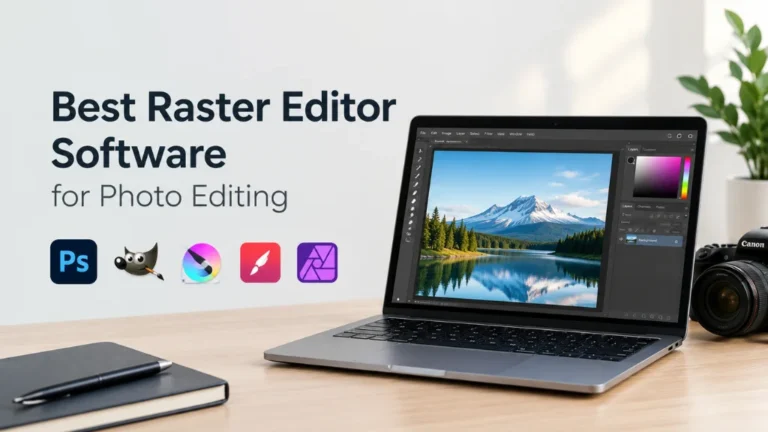
Looking for the best raster editor software for photo editing in 2026? You are not alone. Every photographer, online seller, and designer hits the same question sooner or later. Which tool gives clean, sharp, pro results without wasting time or money?
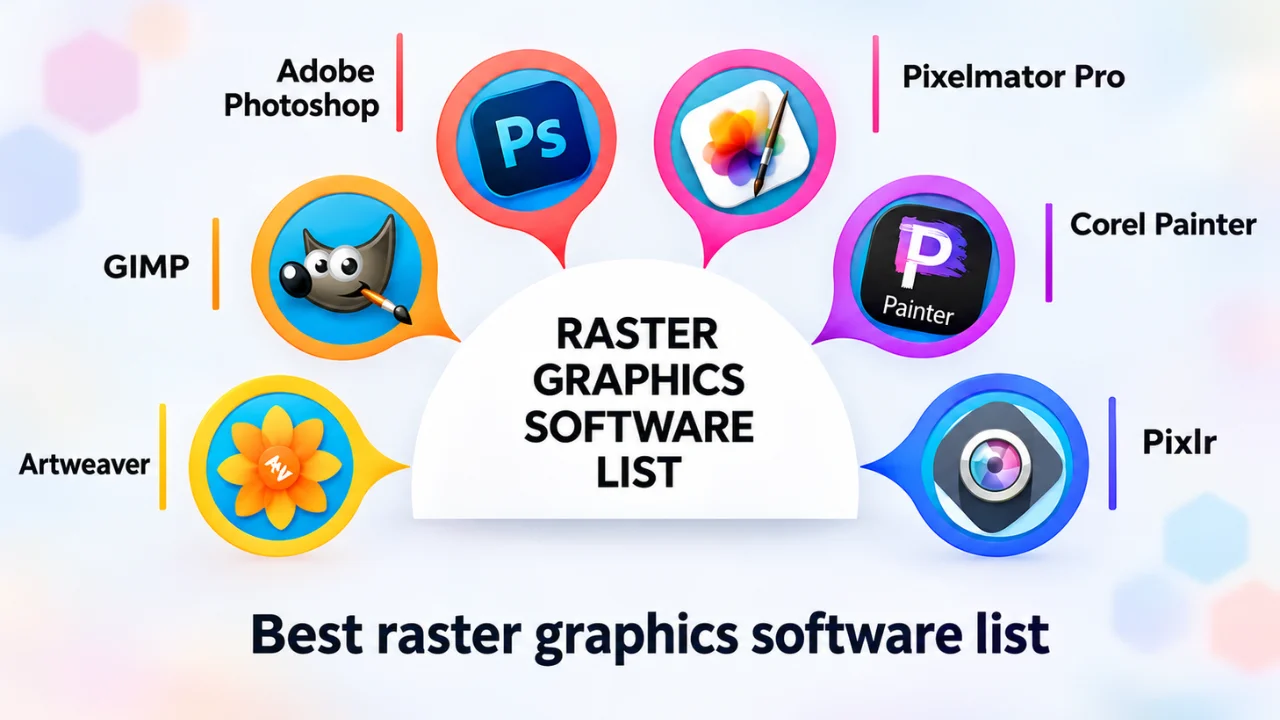
The market changed a lot over the past year. Photoshop added more AI tools. Affinity became free. GIMP 3 has grown into a solid daily tool. And browser-based editors now handle work that once needed a powerful desktop.
We run a post-production studio, so we test these tools every day on real client work. That includes product photos, fashion shots, jewelry, and real estate images. This guide shares what actually works, in plain words.
Quick answer: For most professionals, Adobe Photoshop is still the best raster photo editor in 2026. For a free option with pro power, Affinity by Canva is the top pick. For open-source fans, GIMP 3 is the best free raster graphics editor. If you only need fast, clean results at scale, outsourcing to a photo editing service often beats any software.
In this guide, you will learn:
- What a raster editor is (and how it differs from vector tools)
- The key features to check before you choose
- The 10 best raster image editing programs in 2026, with pros and cons
- A side-by-side comparison table
- Which tool fits your exact use case
- When it makes more sense to hire a professional editing team
What Is a Raster Editor?
A raster editor is software that edits images pixel by pixel. Every digital photo is made of tiny colored squares called pixels. A raster editor lets you change those pixels directly. You can brighten them, recolor them, erase them, or blend them.
That is why raster image editing software is the go-to choice for photos. Cameras and phones capture images as pixels. So when you retouch skin, remove a background, or fix color, you are doing raster work.
Raster vs Vector: What Is the Difference?
This is one of the most common questions people ask. Here is the simple version:
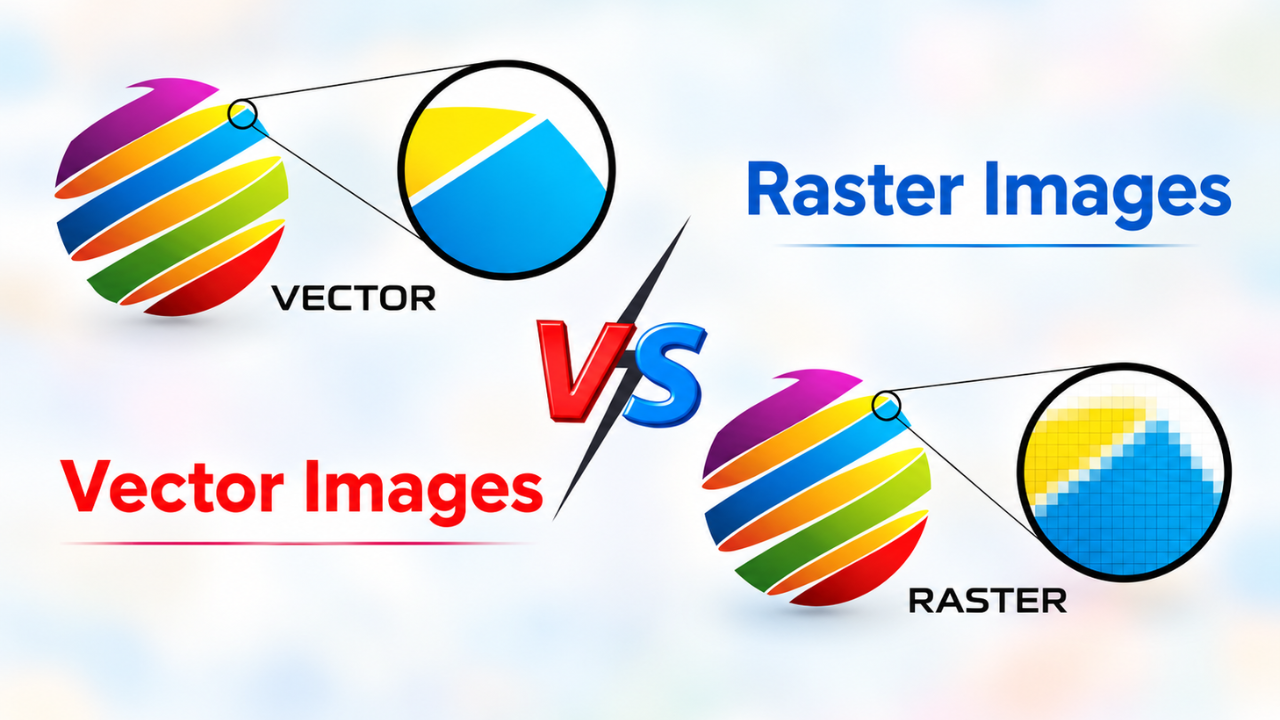
- Raster images are built from pixels. They hold rich detail, like photos. But they get blurry if you enlarge them too much. Common formats: JPG, PNG, TIFF, PSD, and RAW files.
- Vector images are built from math paths and shapes. They stay sharp at any size. They suit logos, icons, and line art. Common formats: SVG, AI, and EPS.
In short, use a raster graphics editor for photos and a vector editor for logos. Many pro tools now do both, but their strength still lies on one side.
Who Needs a Raster Photo Editor?
Almost anyone who works with images. That includes:
- Ecommerce sellers who need clean product photos
- Fashion and portrait photographers
- Real estate photographers and agents
- Graphic designers and social media teams
- Hobbyists who want better family or travel photos
If your work starts with a camera, you need a good pixel-based editor.
What to Look for in a Raster Editor in 2026
The best photo editing software is the one that fits your work. A tool that is perfect for a painter may slow down a product photographer. Check these eight things before you pick one.
- Layers and masks. Non-destructive editing is a must. Layers and masks let you change your mind without ruining the original photo.
- Selection tools. Good selections save hours. Look for a strong pen tool, subject select, and hair refinement. These matter most for background removal and clipping paths.
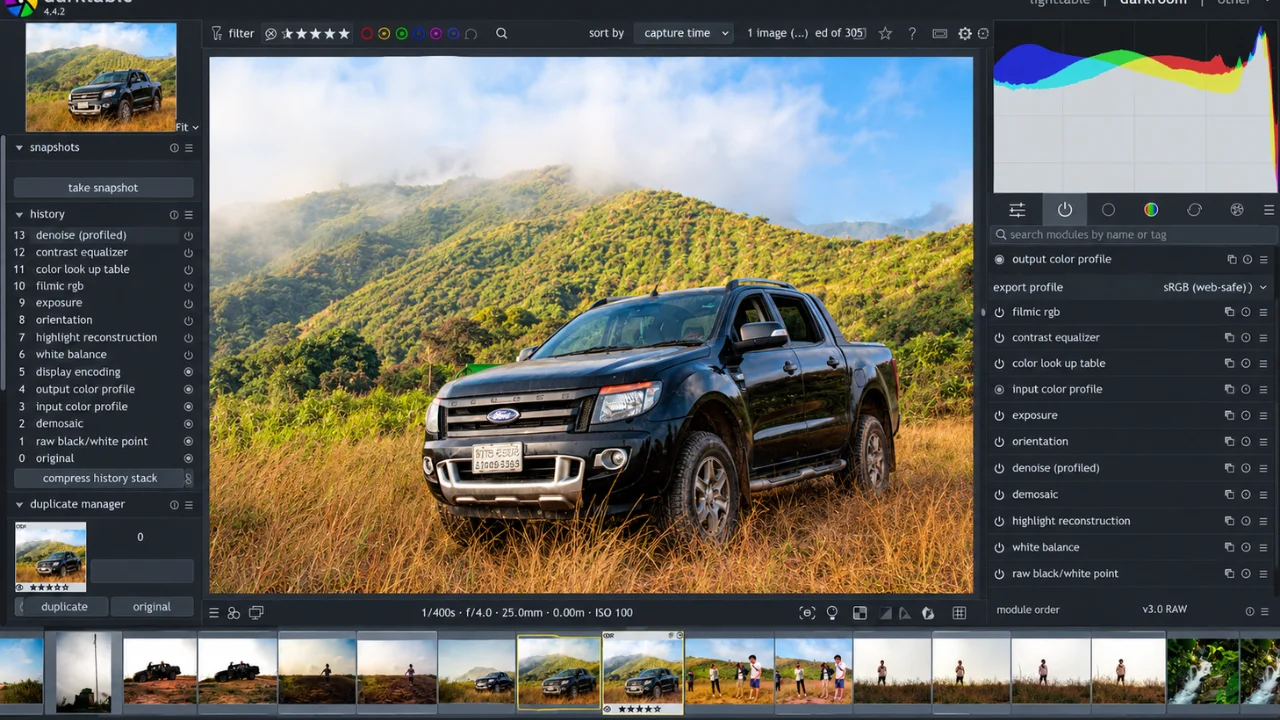
- RAW support. If you shoot with a pro camera, RAW editing gives you far more room to fix exposure and color.
- Retouching tools. Healing brush, clone stamp, frequency separation, and liquify are the core of portrait and product retouching.
- Color management. You need accurate color profiles, especially for ecommerce. A red dress must look the same red on the website as it does in real life.
- AI features. Generative fill, AI object removal, and auto subject masks are now standard in top tools. They speed up simple jobs a lot.
- Batch processing. Editing 500 product photos one by one is painful. Actions, macros, and batch export make big jobs possible.
- Price and platform. Some tools need a monthly plan. Others are free or a one-time payment. Also check if it runs on Windows, Mac, Linux, iPad, or the browser.
Pro tip: Do not chase the longest feature list. Pick the tool that handles your most common task fastest. For most online stores, that means fast selections, clean masking, and batch export.
The 10 Best Raster Editor Software for Photo Editing in 2026
We judged each tool on real editing tasks: cutting out products, retouching skin, fixing color, and exporting batches. Here are the winners.
1. Adobe Photoshop (Best Overall)
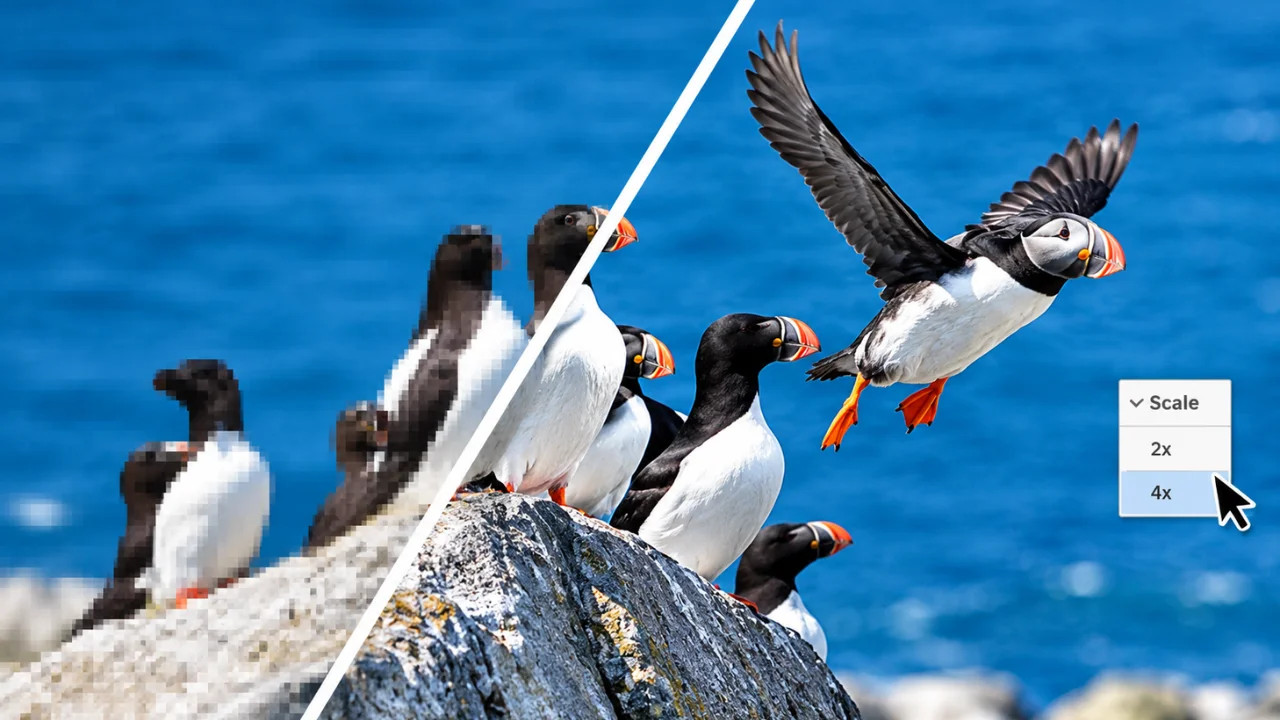
Photoshop is still the industry standard for raster photo editing. Nearly every pro studio uses it, and most tutorials teach it.
The 2026 version leans hard into AI. Generative Fill now offers several AI models to choose from, plus higher resolution results. Tools like Harmonize help blend added objects into a scene. Remove Background and Select Subject are faster and cleaner on hair and fine edges.
- Pros: Best selection and masking tools, huge plugin library, top-tier AI, works with Lightroom and Camera Raw
- Cons: Monthly subscription only, AI tools use generative credits, steep learning curve
- Best for: Professional retouchers, studios, and anyone doing complex compositing
2. Affinity by Canva (Best Free Professional Editor)
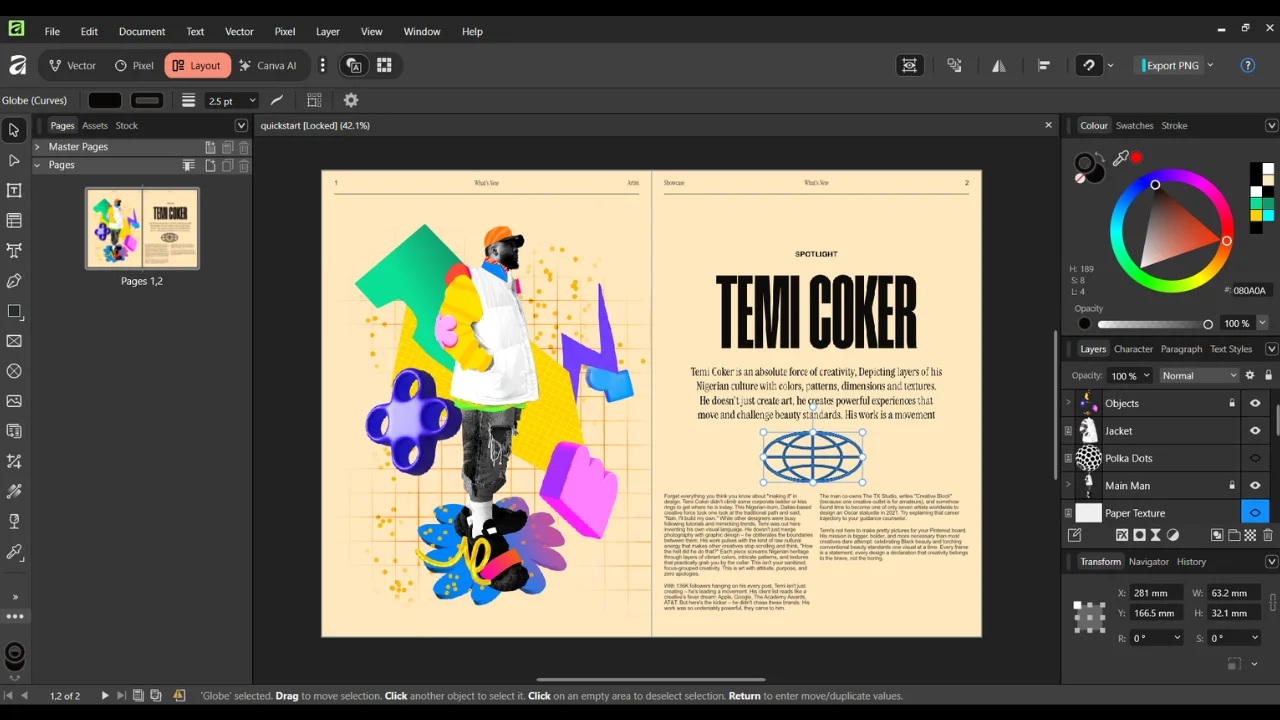
This is the biggest shake-up in years. In late 2025, Canva merged Affinity Photo, Designer, and Publisher into one app and made it free. You only need a free Canva account to use it.
You get pro-level layers, live filters, RAW editing, frequency separation, and fast performance. AI features like generative fill and background removal are available with a paid Canva plan.
- Pros: Free core app, Photoshop-like power, runs well on laptops, photo and vector tools in one place
- Cons: Needs a Canva account, AI tools cost extra, smaller plugin ecosystem than Photoshop
- Best for: Freelancers, small businesses, and anyone leaving Adobe subscriptions
3. GIMP 3 (Best Open-Source Raster Editor)
GIMP has been the classic free photo editor for decades. Version 3 brought a modern interface, non-destructive filters, better color handling, and smoother performance.
- Pros: 100% free and open source, runs on Windows, Mac, and Linux, highly customizable with plugins
- Cons: Fewer AI tools, older workflows still feel clunky, less polished than paid tools
- Best for: Students, Linux users, and budget-minded editors
4. Photopea (Best Browser-Based Editor)
Photopea runs fully in your web browser. It looks and works a lot like Photoshop, and it even opens PSD files with layers intact.
- Pros: No install, free with ads, opens PSD, XCF, and Sketch files, works on almost any computer
- Cons: Slower on very large files, ads on the free tier, depends on your browser
- Best for: Quick edits, Chromebook users, and people who need PSD access without Photoshop
5. Corel PaintShop Pro (Best One-Time Purchase for Windows)
PaintShop Pro is a mature Windows editor with layers, RAW support, and AI tools for upscaling, denoise, and background removal. You buy it once instead of paying monthly.
- Pros: No subscription, beginner-friendly modes, solid AI helpers
- Cons: Windows only, less used in pro studios
- Best for: Home users and small businesses on Windows
6. Pixelmator Pro (Best for Mac Users)
Pixelmator Pro is a fast, beautiful editor built only for Apple devices. It is now part of Apple and uses Apple silicon very well.
- Pros: Very fast on Mac, clean design, smart AI tools for selection and super resolution
- Cons: Apple only, lighter on advanced pro features
- Best for: Mac and iPad users who want speed and simplicity
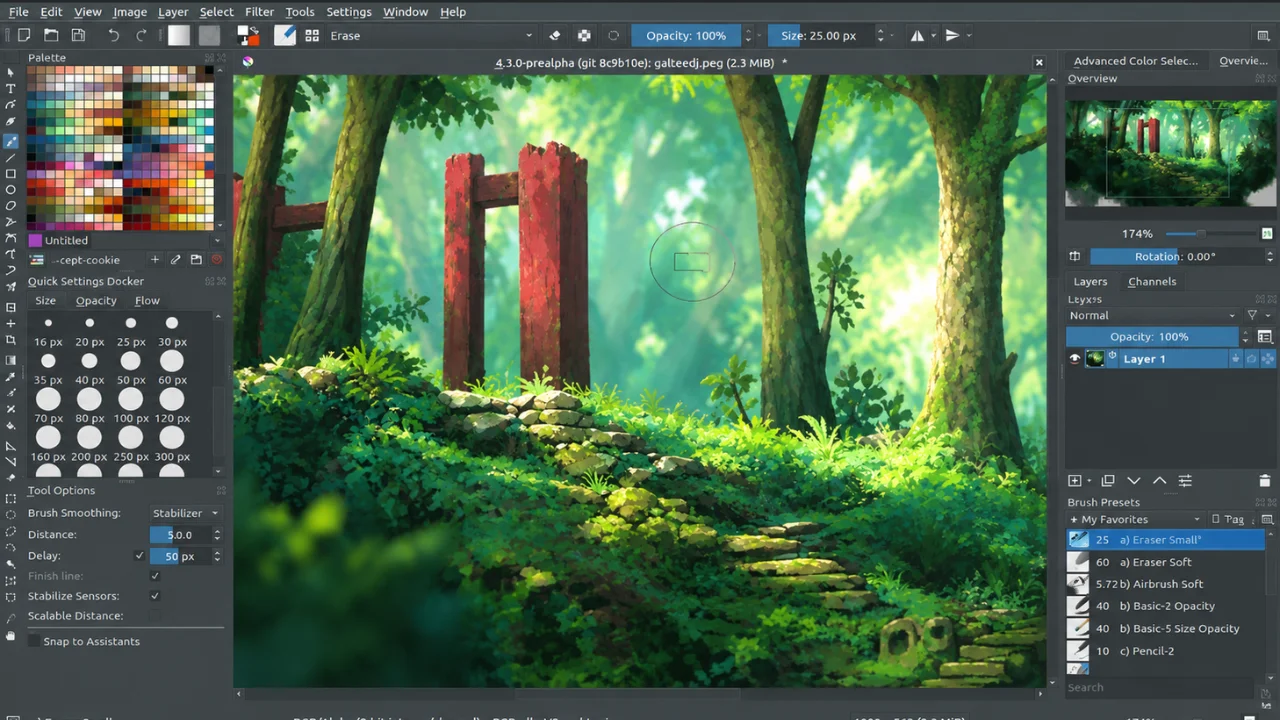
7. Krita (Best for Digital Painting and Touch-Ups)
Krita is a free, open-source raster editor built for artists. It shines at painting, but it also handles layers, masks, and basic photo fixes.
- Pros: Free, amazing brush engine, great with drawing tablets
- Cons: Not built for heavy photo retouching or batch work
- Best for: Digital artists and photo painters
8. Capture One (Best for RAW and Tethered Shooting)
Capture One is a favorite in fashion and product studios. It is known for rich color, precise RAW processing, and tethered shooting straight from camera to computer.
- Pros: Excellent color, strong layer-based adjustments, great for studio workflows
- Cons: Pricey, not a full pixel editor for heavy compositing
- Best for: Studio photographers who shoot many product or fashion images
9. Luminar Neo (Best AI-Powered Editor for Beginners)
Luminar Neo is built around one-click AI tools. Sky replacement, portrait enhancement, and object removal take seconds.
- Pros: Very easy, fast AI results, works as a standalone app or plugin
- Cons: Less control for detailed work, AI can look overdone if pushed
- Best for: Hobbyists and content creators who want quick wins
10. ON1 Photo RAW (Best All-in-One Alternative)
ON1 Photo RAW mixes photo organizing, RAW editing, and layered editing in one app. It is a common pick for people leaving Lightroom plus Photoshop.
- Pros: All-in-one workflow, AI masking, one-time purchase option
- Cons: Can feel heavy on older computers, smaller user base
- Best for: Photographers who want one app from import to final edit
Raster Photo Editor Comparison Table (2026)
Use this quick table to compare the top raster image editors side by side.
| Software | Price Model | Platforms | AI Tools | Best For |
|---|---|---|---|---|
| Adobe Photoshop | Subscription | Windows, Mac, iPad, Web | Advanced | Pro retouching and compositing |
| Affinity by Canva | Free (AI paid) | Windows, Mac | Good (with Canva plan) | Free pro editing |
| GIMP 3 | Free, open source | Windows, Mac, Linux | Basic (plugins) | Budget and Linux users |
| Photopea | Free with ads, or paid | Browser | Basic | Quick PSD edits online |
| Corel PaintShop Pro | One-time purchase | Windows | Good | Home and small business |
| Pixelmator Pro | Paid | Mac, iPad | Good | Mac users |
| Krita | Free, open source | Windows, Mac, Linux | Minimal | Digital painting |
| Capture One | Subscription or license | Windows, Mac, iPad | Good | Studio RAW workflows |
| Luminar Neo | Subscription or license | Windows, Mac | Advanced (one-click) | Beginners and creators |
| ON1 Photo RAW | Subscription or license | Windows, Mac | Good | All-in-one photo workflow |
Prices and plans change often, so check each official site before you buy.
Which Raster Editor Should You Choose?
Still not sure? Match your goal to the right tool.
- Best for professional photo retouching: Adobe Photoshop. Nothing beats it for masking, compositing, and fine detail work.
- Best free raster editor for pros: Affinity by Canva. You get near-Photoshop power without a monthly bill.
- Best free open-source option: GIMP 3. Great if you want full control and zero cost.
- Best for ecommerce product photos: Photoshop or Affinity. Both have the pen tool, masks, and batch actions online stores need.
- Best for beginners: Luminar Neo or PaintShop Pro. Simple menus and one-click fixes.
- Best for quick edits on any device: Photopea. Just open a browser and start.
- Best for Mac users: Pixelmator Pro.
- Best for studio and fashion shoots: Capture One for RAW and tethering, then Photoshop for final retouching.
Software Is Only Half the Job
Here is the honest truth. The best photo editing software does not guarantee great results. Skill, time, and consistency matter just as much.
A clean clipping path on one product takes a trained editor a few minutes. For a beginner, it can take an hour. Now multiply that by 300 product images for a new store launch. That is where many brands get stuck.
This is why so many ecommerce brands, photographers, and agencies choose to outsource. They keep their time for shooting and selling, and let experts handle the editing.
Clipping Area: Your Premium Post-Production Partner
Clipping Area is a premium post-production and photo retouching agency. Since 2014, our team has delivered complete image editing solutions to ecommerce brands, fashion labels, photographers, real estate agencies, and marketing teams around the world.
We use the same pro raster editors you just read about, mainly Adobe Photoshop, with hand-drawn paths and careful manual checks. The difference is experience. Our editors work on thousands of images, so your photos come back clean, consistent, and ready to sell.
Our Photo Editing Services
- Clipping Path: Precise, hand-drawn pen tool paths for sharp product cutouts.
- Background Removal: Clean white, transparent, or custom backgrounds for marketplaces like Amazon, Shopify, and eBay.
- Image Masking: Detailed masks for hair, fur, lace, and other soft or complex edges.
- Ghost Mannequin: Invisible mannequin effect that gives apparel a natural 3D shape.
- Ecommerce Image Editing: Full product photo editing for online stores, including cropping, alignment, and sizing.
- Real Estate Photo Editing: HDR blending, sky replacement, virtual staging, and perspective correction.
- Jewelry Retouching: Dust removal, metal cleanup, stone sparkle, and reflection control.
- Product Retouching: Scratch removal, label cleanup, and shape fixes that make products look their best.
- Color Correction: Accurate, true-to-life color so what buyers see matches what they get.
- Shadow Creation: Natural, drop, and reflection shadows that add depth.
- Photo Retouching: Skin, beauty, and portrait retouching that still looks natural.
- Video Editing, 3D Rendering, and AI Creative Services: Extra support for brands that need more than still images.
Why Brands Choose Clipping Area
- Real human editors: Every image is checked by hand, not just run through an AI filter.
- Consistent quality at scale: Same style, angle, and color across your whole catalog.
- Fast turnaround: Bulk orders handled on tight timelines.
- Flexible formats: PSD with paths, layered TIFF, PNG, JPG, or your custom spec.
- Over a decade of experience: Trusted by clients across many industries since 2014.
Ready to save hours of editing time? Send us a few sample images at Clipping Area and see the difference professional post-production makes.
Frequently Asked Questions
What is the best raster editor software for photo editing in 2026?
Adobe Photoshop is the best overall raster editor in 2026. It has the strongest selection, masking, and AI tools. If you want a free option, Affinity by Canva offers similar pro features at no cost.
What is the best free raster graphics editor?
Affinity by Canva is the best free pro-level editor. GIMP 3 is the best free open-source choice. Photopea is the best free browser-based option.
Is Photoshop a raster or vector program?
Photoshop is mainly a raster editor. It works with pixels, which makes it ideal for photos. It has some vector tools, like shapes and the pen tool, but its core strength is pixel editing.
Can I use a raster editor for ecommerce product photos?
Yes. Raster editors are the standard tool for product photos. You use them for background removal, clipping paths, color correction, and shadows. For large catalogs, many stores outsource this work to a professional editing service.
Is Affinity really free now?
Yes. Since late 2025, the Affinity app from Canva is free on Windows and Mac. You need a free Canva account. AI features require a paid Canva plan.
What is the difference between Photoshop and Lightroom?
Lightroom is for organizing and batch-adjusting photos, like exposure and color. Photoshop is for detailed pixel work, like removing objects, cutting out products, and compositing. Many pros use both together.
Should I edit product photos myself or outsource?
Edit yourself if you have a few images and the skills. Outsource if you have large volumes, tight deadlines, or need consistent pro quality. A post-production agency like Clipping Area can handle hundreds of images while you focus on growing your business.
Which raster editor is best for beginners?
Luminar Neo and PaintShop Pro are the easiest to learn. Photopea is also simple if you want something free that works in your browser.
Final Thoughts
The best raster editor software for photo editing in 2026 depends on your goals and budget. Photoshop leads for pro work. Affinity by Canva is the best free alternative. GIMP 3 and Photopea are great zero-cost picks. Pixelmator Pro, Capture One, Luminar Neo, and ON1 each fit a clear niche.
Start with the tool that matches your most common task. Learn its selection and masking tools well, because they power almost every edit.
And when your image volume grows faster than your editing time, let experts help. Clipping Area turns raw shots into clean, store-ready, high-converting images, so you can spend your time where it matters most.