You have a photo, and you need a link to it. Maybe it’s for a forum post, a support ticket, a blog draft, or a product listing. Emailing the file is clumsy, and pasting a huge image into a chat is worse. What you actually want is a small, reliable URL that shows the picture wherever you drop it.
That is the job of an image hosting site, and ImgBB is one of the most recognised names for it. It is free, it needs no signup for basic use, and it hands you a direct link in seconds.
But “free” and “fast” are not the whole story. This guide covers how ImgBB works, what each link type is for, where it fits, and where it doesn’t. We’ll also look at privacy, the API, and the alternatives, so you can pick the right tool instead of the first one you find.
What Is ImgBB?
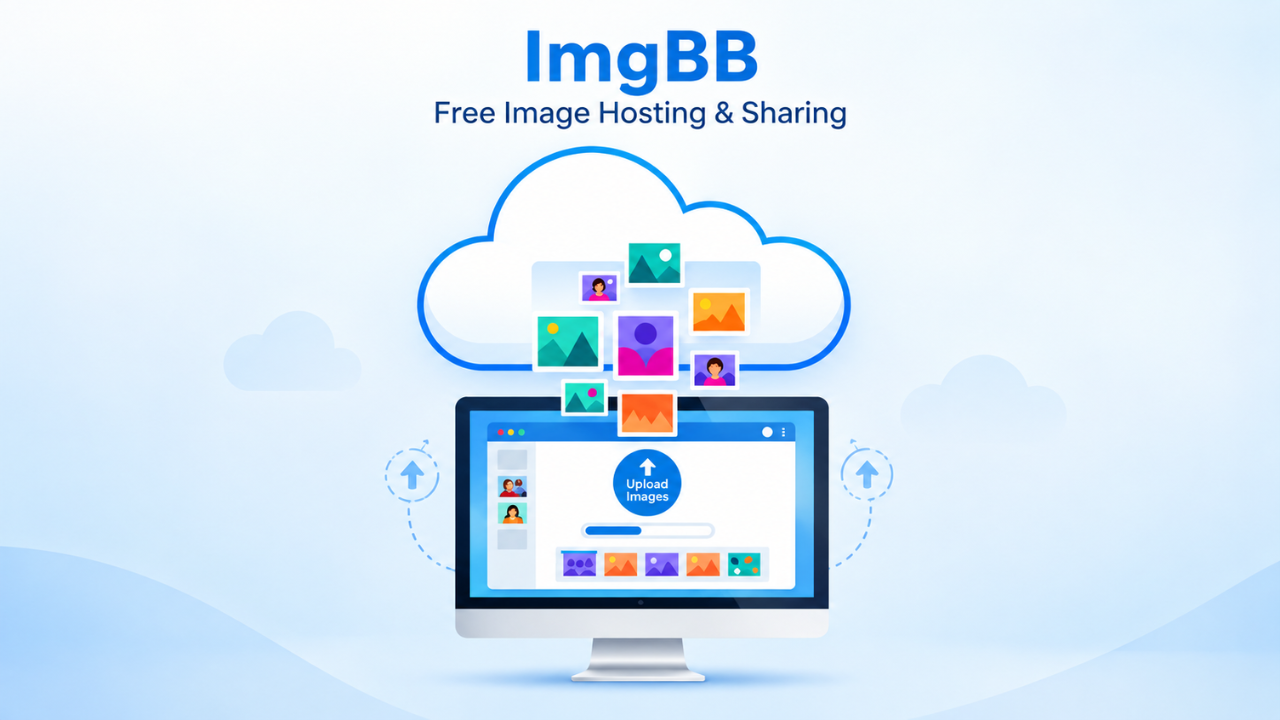
ImgBB is a free image hosting service. You upload a picture, ImgBB stores it on its servers, and you get back a set of links you can paste anywhere: a plain URL, HTML code, or BBCode for forums.
Think of it as a public shelf for your images. You put the picture on the shelf, and ImgBB gives you the address. Anyone with the address can see it.

People use it for many everyday reasons:
- Bloggers who need a quick link while drafting
- Forum members who want to post a screenshot
- Developers who need image URLs for testing
- Small sellers sharing product photos with a customer
- Designers sending a preview to a client
The appeal is speed. You don’t configure anything. You drag a file in, wait a few seconds, and copy the link.
ImgBB at a Glance
Limits and plans can change, so check ImgBB’s own pages for the current details before you build anything important on top of it.
How to Use ImgBB for Free Image Hosting Step by Step
ImgBB is easy to use, even if you have never hosted an image online before. There are no tricky settings, and you can start without signing up. Follow these five steps.
Step 1: Open the ImgBB Website
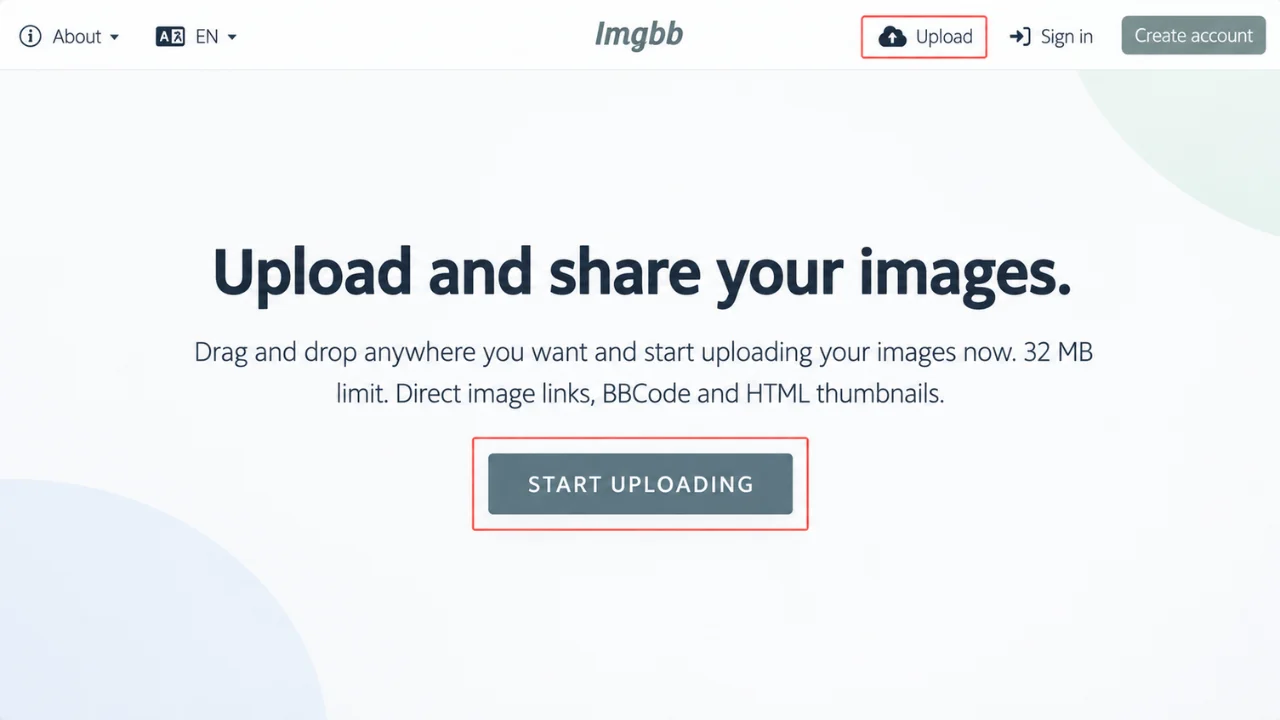
Visit the ImgBB website in your browser. The upload area appears on the homepage as soon as it loads. This is where you add your images.
Step 2: Upload Your Image
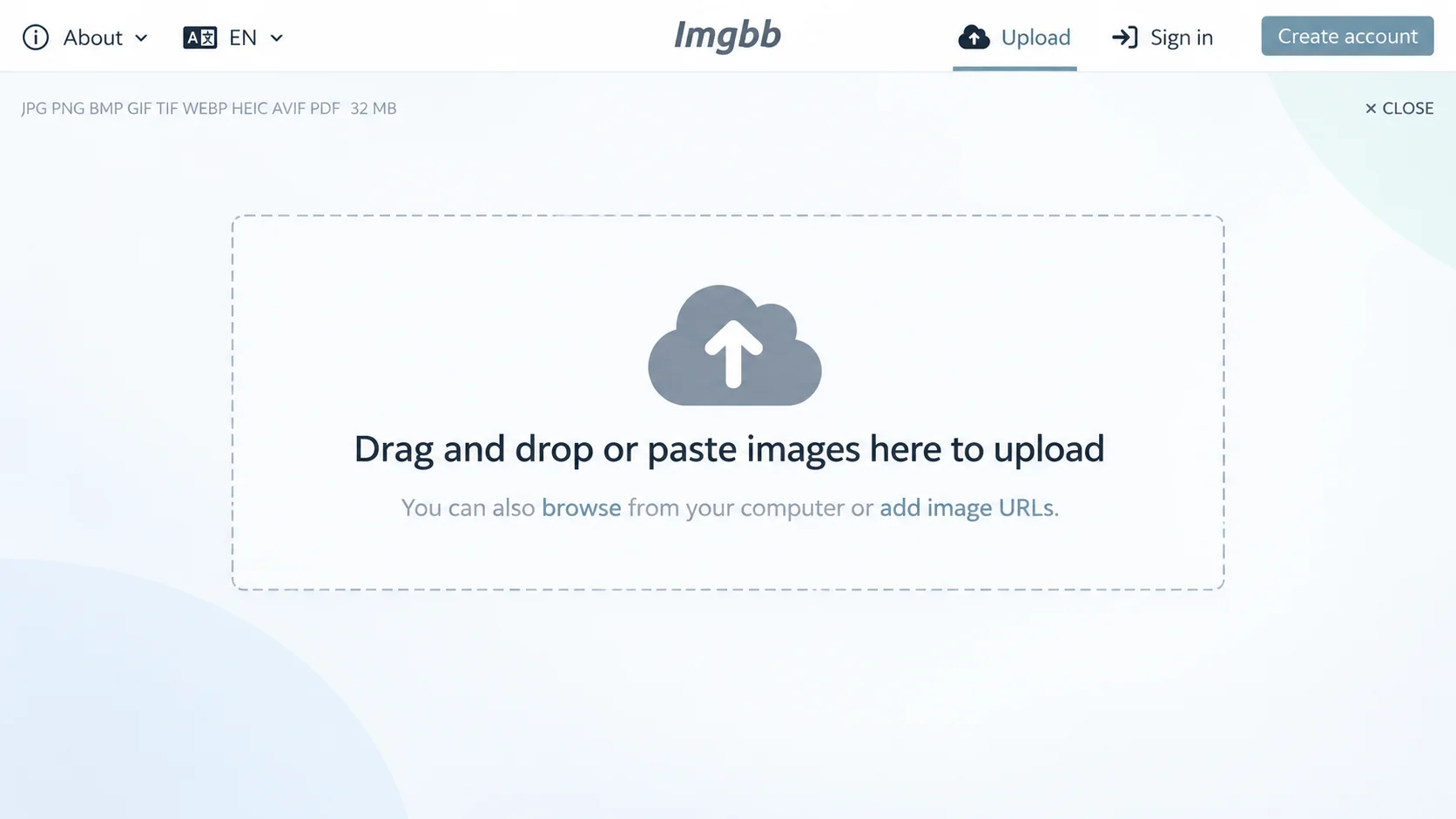
You have two ways to add an image:
- Drag and drop: Pull the image from your computer and release it on the upload area.
- Select from device: Click the upload button, browse your files, and pick the image.
ImgBB accepts common formats such as JPEG, PNG, GIF, BMP, and WebP, so you do not need to convert your file first.
Step 3: Set Optional Preferences
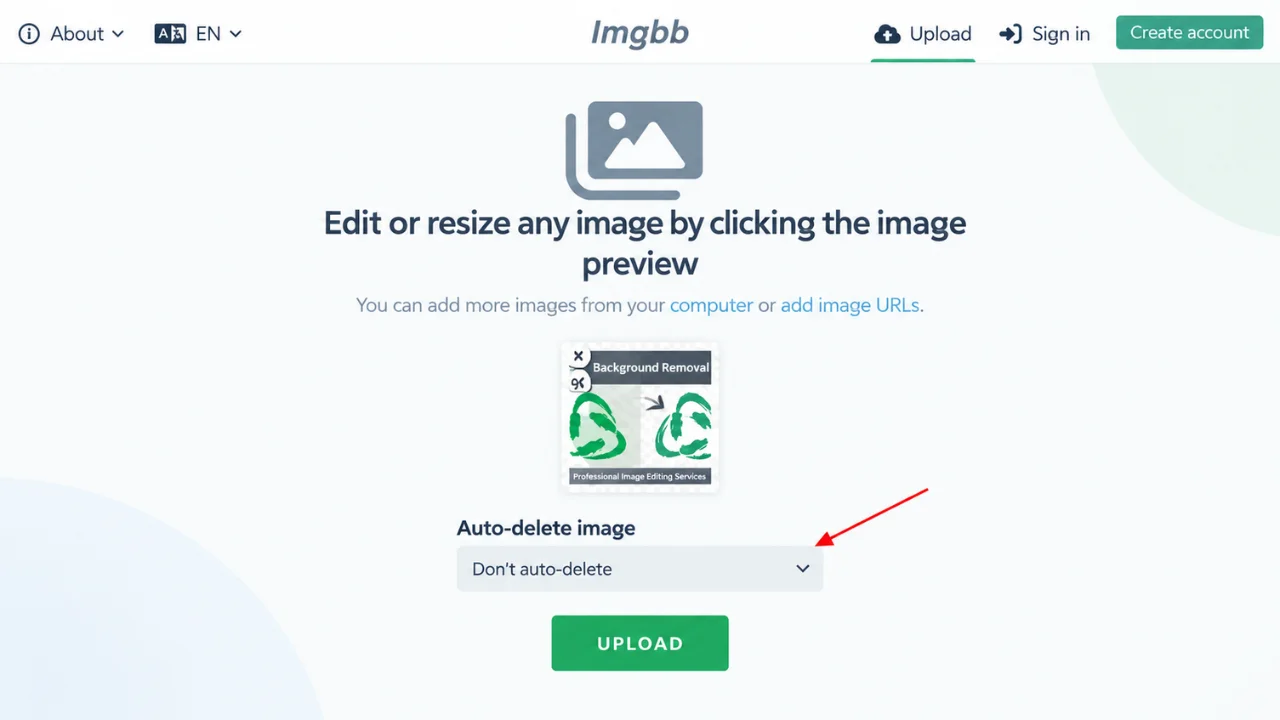
Before you upload, you can decide how long the image stays online.
- Choose an auto-delete time, such as 5 minutes, 1 hour, or 1 week.
- Choose “Don’t autodelete” if you want the image to stay online.
Once you have made your choice, click Upload. Most uploads finish in a few seconds.
Step 4: Copy the Shareable Link
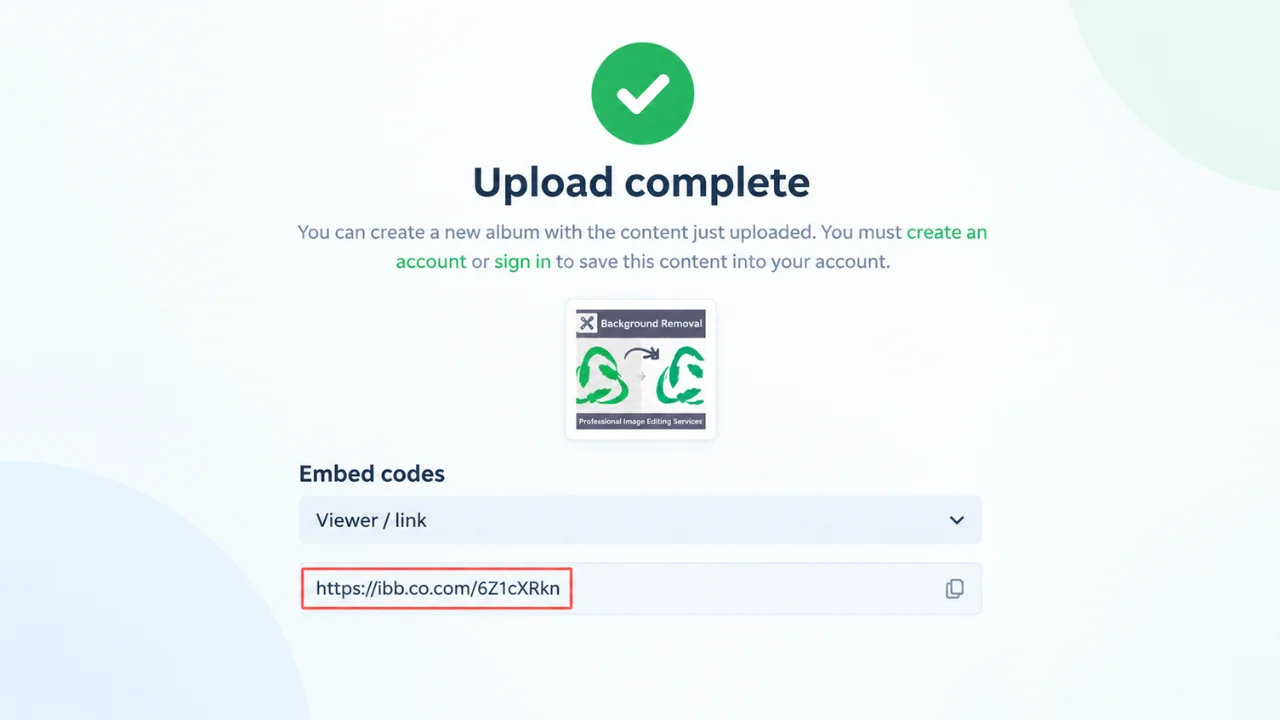
After the upload, ImgBB gives you several link types:
- Direct link: A plain image URL.
- HTML embed code: For showing the image on a website or blog post.
- BBCode: For posting the image in online forums.
- Full image or linked thumbnail: Controls how the image appears when shared.
Copy the format that suits your need and paste it where you want the image to appear.
Step 5: Create an Account (Optional)
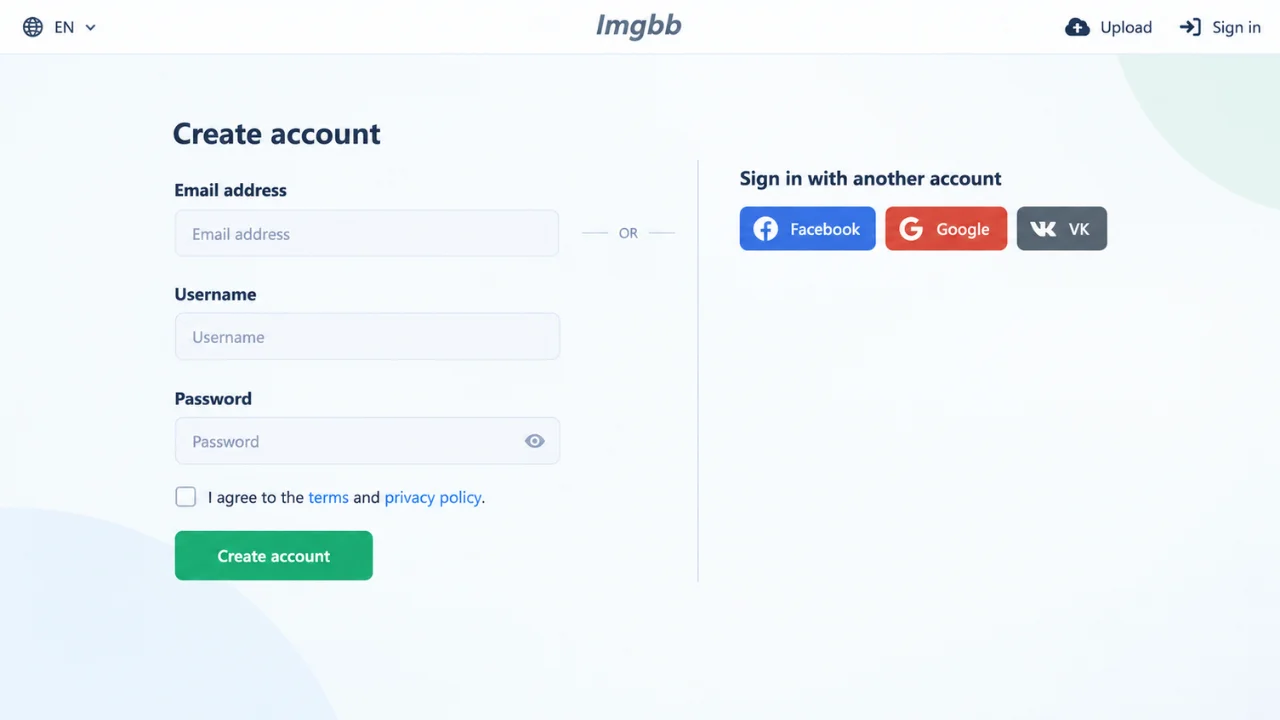
A free account is useful if you plan to keep images for a long time. With an account, you can:
- Save your uploads
- Sort images into albums
- Edit or delete images later
- Open your full image library at any time
You do not need an account to use ImgBB, but it helps if you upload often.
🚀 Want images that look sharp on every platform? Improve quality, cut file size, and keep every photo web-ready with Clipping Area Image Editing & Retouching Services. 👉 Explore Now
One fix from the original: the format note in Step 2 and the “Save your uploads / Organize images into albums” line in Step 5 were merged into the wrong bullets, so I separated them.
Which Link Should You Copy?
This is where beginners get stuck, so here is a plain-English guide.
Direct link. This is a URL that ends in an image file extension and opens the picture itself, with no surrounding page. Use it when a platform asks for an “image URL,” such as a CMS field, a Markdown file, or a chat tool.
Viewer link. This opens a page on ImgBB that shows your image. It’s fine for sharing with a person, but it’s the wrong choice for embedding, because it points to a web page and not to a picture.
HTML code. A ready-made <img> snippet. Paste it into a blog editor’s HTML view or a website template.
BBCode. A tag format used by older forum software. If you’ve ever seen [img] tags in a forum post box, that’s BBCode.
Thumbnail versions. A small preview that links to the larger image. These are handy in forums where you want to keep the post compact.
A quick rule: if you’re embedding, use the direct link or the HTML code. If you’re sending someone a link to look at, the viewer link is fine.
Key Features Worth Knowing
Uploading without an account
For basic use you don’t have to register. That makes ImgBB useful when you need something fast, or when you don’t want to hand over an email address for a single upload.
Wide format support
You don’t need to convert most files before uploading. Everyday formats like JPG, PNG, GIF, and WebP are accepted, and the upload page lists the rest.
Optional expiry
The auto-delete option is useful for temporary sharing, such as a screenshot for a bug report that you don’t want online forever.
Albums for account holders
With an account, you can sort uploads into albums. It sounds minor until you have three hundred files and need the one from March.
A developer API
ImgBB offers an API, so an app or script can upload images programmatically. We’ll look at that shortly.
Works on mobile
The site is usable on a phone or tablet, so you can upload straight from your camera roll.
Real Situations Where ImgBB Works Well
Forum and community posts. Many forums don’t let you attach large files, or they compress them badly. Hosting the image elsewhere and pasting a link keeps quality intact.
Bug reports and support threads. A screenshot with a short-lived link is easier than attaching files to every reply.
Drafting content. Writers often need placeholder image URLs while building a page. ImgBB gives them one without touching the site’s media library.
Quick client previews. A designer can upload a mockup and send the link instead of a heavy email attachment.
Testing and prototypes. Developers building a demo page can point to hosted sample images without setting up storage.
Simple product sharing. A small seller can send a customer a direct link to a product photo over chat.
Notice the pattern. These are lightweight, low-stakes, short-term jobs. That matters for the next section.
Is ImgBB Safe and Private?
Here’s the part most guides skip. Being careful with public image links is just good practice.
Anyone with the link can view the image. ImgBB is a sharing tool, not a vault. If someone gets the URL, they can see the picture. Don’t upload ID documents, private photos, contracts, or anything you wouldn’t be comfortable seeing on a public page.
“Anonymous” is not the same as “invisible.” Uploading without an account means you don’t have a profile, but it doesn’t make the file secret. If you later need to remove something and you had no account, you may have limited control, so save the delete link that appears after upload.
Client and customer images need care. If a photo belongs to a customer or contains a person, think about whether you have permission to put it on a third-party server.
Read the terms. Every hosting service has rules about what can be uploaded and what happens to files over time. Take two minutes to read them, especially if the images matter to your business.
The safe habit is simple: use ImgBB for images that are fine to be public, and keep private material somewhere private.
Does ImgBB Help Your SEO?
A lot of articles about image hosting imply that using a fast host will boost your rankings. It’s worth being straight about this, because the truth is more nuanced.
When you host an image on someone else’s domain, the file lives on their server, not yours. Search engines see that image as belonging to that other site. So hosting your blog’s main images on ImgBB does not build image authority for your domain.
Here is what actually moves the needle for image SEO:
- Descriptive file names. blue-leather-wallet-front.jpg says more than IMG_4821.jpg.
- Useful alt text. Describe what’s in the picture in plain language, for people who can’t see it and for search engines.
- Right-sized files. Big images slow pages down, and slow pages frustrate visitors.
- Modern formats. WebP or AVIF often give smaller files at similar quality.
- Lazy loading. Images below the fold shouldn’t load until needed.
- Hosting on your own domain or CDN. This keeps the image tied to your site and gives you control over speed and caching.
So where does ImgBB fit? It’s fine for forum posts, drafts, and quick shares. For the important images on a site you want to rank, such as your product pages, hero images, and featured graphics, you’re usually better off using your own media library or a proper CDN.
There’s also a reliability angle. If a third-party host changes its rules, removes files, or has an outage, every page pointing to it shows a broken image. When the image is part of your business, you want to own the file.
Using the ImgBB API
If you build websites or apps, the API lets you upload images from code instead of the browser.
The basic flow is:
- Create a free account and generate an API key from the API section of the site.
- Send a POST request with your key and the image.
- Read the response, which includes the image URLs.
The expiration value is in seconds, so 600 means the image is removed after ten minutes. Leave it out if you want the file to stay.
A few practical tips:
- Keep your API key out of public code. Store it in an environment variable.
- Handle failed uploads gracefully. Networks time out, and your app should retry or show a clear message.
- Check the current documentation for supported parameters and limits, since these can change.
For a hobby project or a prototype, this is perfectly good. For a production store that depends on images loading every time, consider a service built for that purpose (see the alternatives below).
Prepare Your Images Before Uploading
Whatever host you use, the image you upload matters as much as where it lives. Two minutes of prep saves a lot of trouble.
Resize to the size you need. A 6000-pixel photo is pointless if it will display at 800 pixels wide.
Compress sensibly. Reducing file size speeds up loading. Aim for a balance where the picture still looks sharp.
Choose the right format. JPG suits photos, PNG suits graphics with transparency, and WebP often beats both on size.
Clean up the picture. Crop distractions, fix colour, and remove messy backgrounds. This is especially important for product photos.
If you sell online, this last point is not optional. Marketplaces like Amazon have strict rules about main images: clean backgrounds, proper framing, and sharp detail. Shoppers also judge a product in about a second based on the photo. If editing isn’t your strength or you have hundreds of images to get through, a professional service such as Clipping Area handles background removal, retouching, ghost mannequin edits, and Amazon-ready product photos, so the files you upload look right from the start.
ImgBB Alternatives: Which One Fits Your Needs?
No single host suits every job. Here is an honest look at common options. Free-plan limits change often, so confirm current terms before committing.
Imgur. A big, well-known host with a social side, where people browse and comment on images. It’s great for casual sharing and communities, but it’s aimed at sharing, not at powering a business website.
PostImages. Simple, no-account uploading with resizing options. A solid pick for forum posts and quick links.
Imgbox. A lightweight free host with direct links. Good for simple, no-fuss sharing.
Flickr. Built for photographers who want to showcase work. It’s a portfolio platform more than a link generator, and its free plan has tighter limits than it once did.
Google Photos. Excellent for personal backup and syncing across devices. However, it isn’t designed to give you stable direct links for embedding on websites.
500px. A community and marketplace for photographers. Useful for exposure, not for hosting images that appear on other pages.
Cloudinary and ImageKit. These are built for businesses. They offer CDN delivery, automatic resizing and format conversion, and free tiers to start. If your website’s speed and image quality matter, this category is worth a look.
Cloudflare R2 or similar object storage. For teams comfortable with a bit of setup, object storage paired with a CDN gives you full control and predictable costs.
A note on old names. Some services that appear on older “best of” lists, such as TinyPic, have shut down. And Photobucket has moved away from what used to be a generous free offering. Always check that a service still exists and still allows what you need before you build on it.
Quick comparison
How to Choose the Right Image Host
Ask yourself four questions.
- How long does this image need to exist? A screenshot for a chat can vanish tomorrow. A product photo on a live store should last for years.
- Who owns the risk if the link breaks? If a broken image would cost you a sale or embarrass your brand, host it yourself or use a business-grade service.
- Is the image private or sensitive? If yes, don’t put it on a public host.
- Do you need speed and format control? If page speed matters, pick a host with a CDN and automatic optimisation.
If your answers are “short time, low risk, not sensitive, no special needs,” ImgBB is a comfortable choice. If any answer points the other way, look at a more robust option.
Troubleshooting: When an ImgBB Image Won’t Load
Broken images are frustrating, but the cause is usually simple.
- The image expired. Check whether you set an auto-delete timer. If you did, the file may be gone.
- You used the viewer link. If you pasted the page link instead of the direct link, embedding will fail. Copy the direct link or HTML code.
- The link got changed. A stray space or a missing character breaks the URL. Copy it again carefully.
- The file was deleted. If you or someone with access removed it, it’s gone.
- The platform blocks external images. Some sites don’t allow images from third-party hosts. Try uploading directly to that platform instead.
If you can’t recover the file, re-upload it and use the new link. This is also a good reminder to keep original copies of every important image on your own device or cloud storage.
Frequently Asked Questions
Is ImgBB really free? Yes, basic uploading is free. Paid plans exist for people who want extra features or higher limits, so check the current offer on the site.
Do I need an account to upload? No, you can upload without one. An account is useful if you want to organise albums or manage your files later.
What is the maximum file size? The free upload limit is 32 MB per image, though limits can change, so verify on the upload page.
Can I use ImgBB images on my website or blog? Technically yes, using the direct link or HTML code. For key images on a site you care about, hosting on your own domain or CDN is the safer long-term choice.
Can I delete an image after uploading? Yes, if you have an account or you saved the delete link. Without either, removal can be difficult.
Does ImgBB add watermarks? Uploaded images aren’t given a watermark by the service.
What’s the difference between a direct link and a viewer link? A direct link opens the picture itself and is what you need for embedding. A viewer link opens a web page that displays the picture.
Is ImgBB good for e-commerce? It’s fine for quickly sharing a product photo with a customer. For live product listings, use your store’s media library or a CDN-backed service, and make sure the photos meet each marketplace’s requirements.
What are the best ImgBB alternatives? For quick sharing, PostImages and Imgbox are similar. For community sharing, Imgur. For business websites, Cloudinary or ImageKit.
Final Thoughts
ImgBB earns its popularity by doing one thing simply: it turns an image into a link, fast, with almost no friction. For forum posts, drafts, quick previews, and prototypes, that’s exactly what you need.
Where it stops being the right answer is where your images become part of your business. If a broken link would cost you customers, or if you want your images to strengthen your own site’s SEO, host them somewhere you control and prepare them properly first.
Use the right tool for the job, keep private things private, and always keep the originals. Do that, and your images will load quickly, look good, and stay online for as long as you need them.