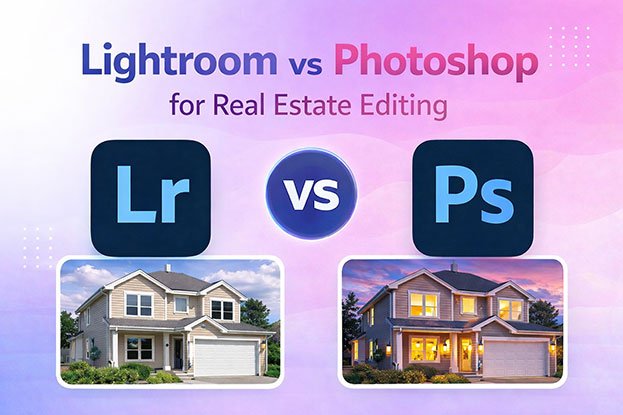
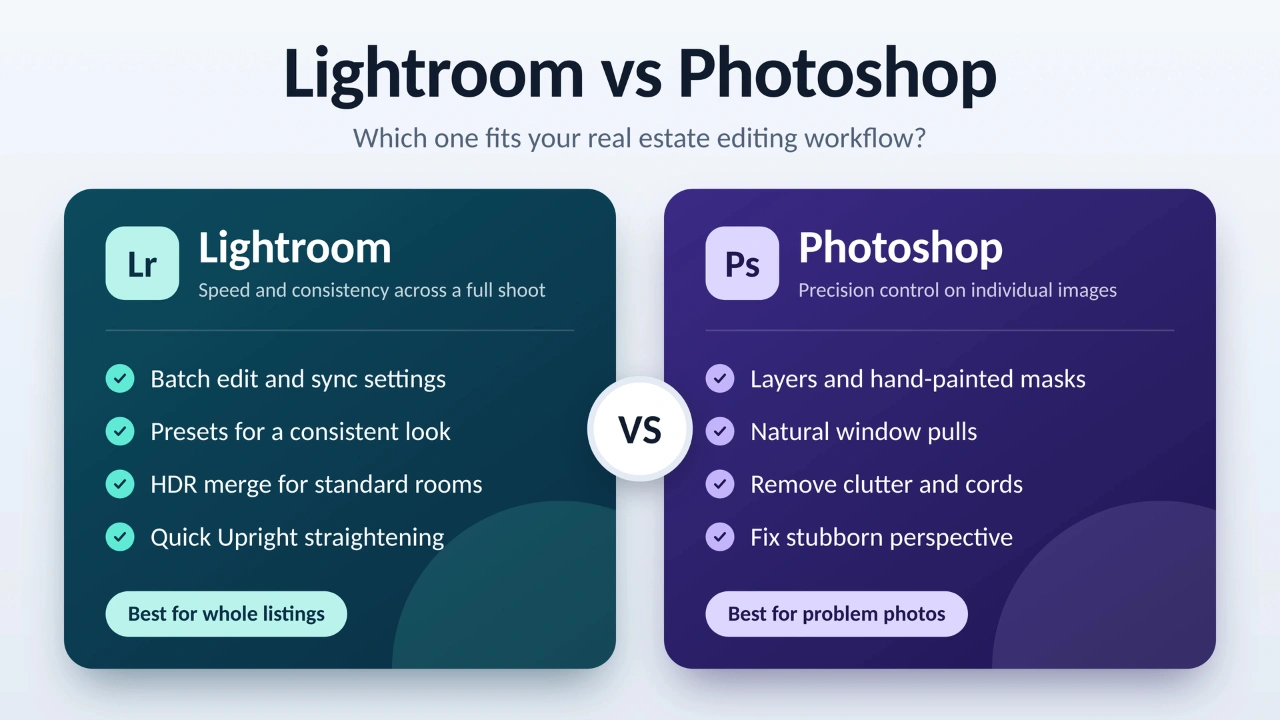
If you shoot real estate, you have probably wondered whether Lightroom is enough or whether you need Photoshop too. The two programs overlap more than most people expect, and learning both, paying for both, and switching between them all cost time.
The short version: Lightroom handles most of a real estate edit, and Photoshop handles the problems Lightroom can’t. Which one you lean on depends on how many listings you shoot, how difficult your rooms are, and how much time you can spend on each image.
This article compares Lightroom vs Photoshop for real estate editing, task by task. It shows where each one wins and lays out a workflow that uses both without wasting time.
The Quick Answer
- Lots of listings, mostly standard rooms: Lightroom covers most of what you need.
- High-end homes, tricky windows, or photos that need cleanup: Add Photoshop.
- Shooting is your strength and editing slows you down: Consider outsourcing.
| Task | Lightroom | Photoshop |
|---|---|---|
| Culling and organizing a shoot | Strong | Not built for it |
| Batch editing many photos | Strong | Slow, needs actions |
| White balance and exposure | Strong | Available through Camera Raw |
| Merging bracketed exposures | Fast, automatic | Manual, more control |
| Window pulls | Possible, limited | Best option |
| Straightening verticals | Strong | Strong |
| Removing objects and clutter | Basic | Best option |
| Learning curve | Moderate | Steeper |
A Quick Note on Which “Lightroom” We Mean
Adobe sells two versions. Lightroom Classic is the desktop app with a catalog, built for large shoots. The newer Lightroom is cloud-based and syncs across devices. Most working real estate photographers use Classic for batch work, so that is what this article means unless it says otherwise. The core editing tools are similar in both.
What Lightroom and Photoshop Does Best in a Real Estate Workflow
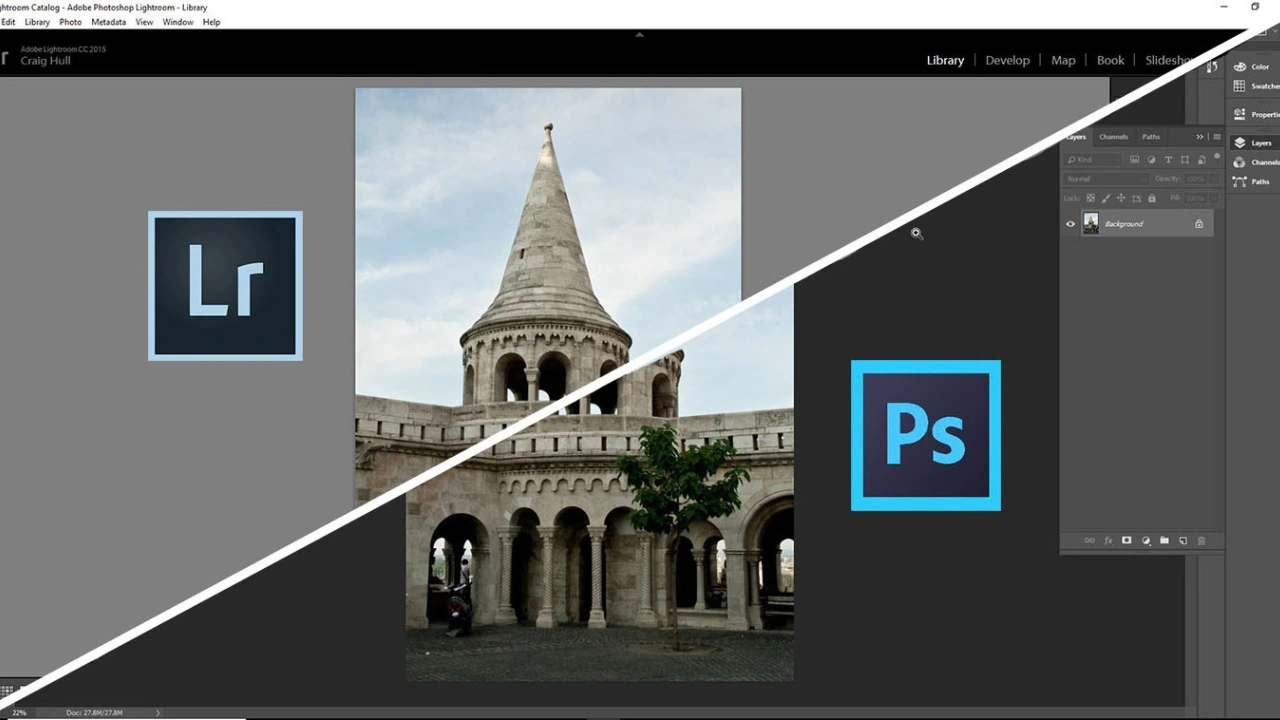
Lightroom is built around a whole shoot, not a single image. That matters more than any individual slider.
A typical listing might include dozens of frames across a dozen rooms. Lightroom lets you import them all, cull the misses, and edit efficiently. Here is where it earns its place:
- Sync settings. Fix white balance and exposure on one photo, then apply the same settings to every other frame shot in the same room under the same light. This is the biggest time saver in the whole program.
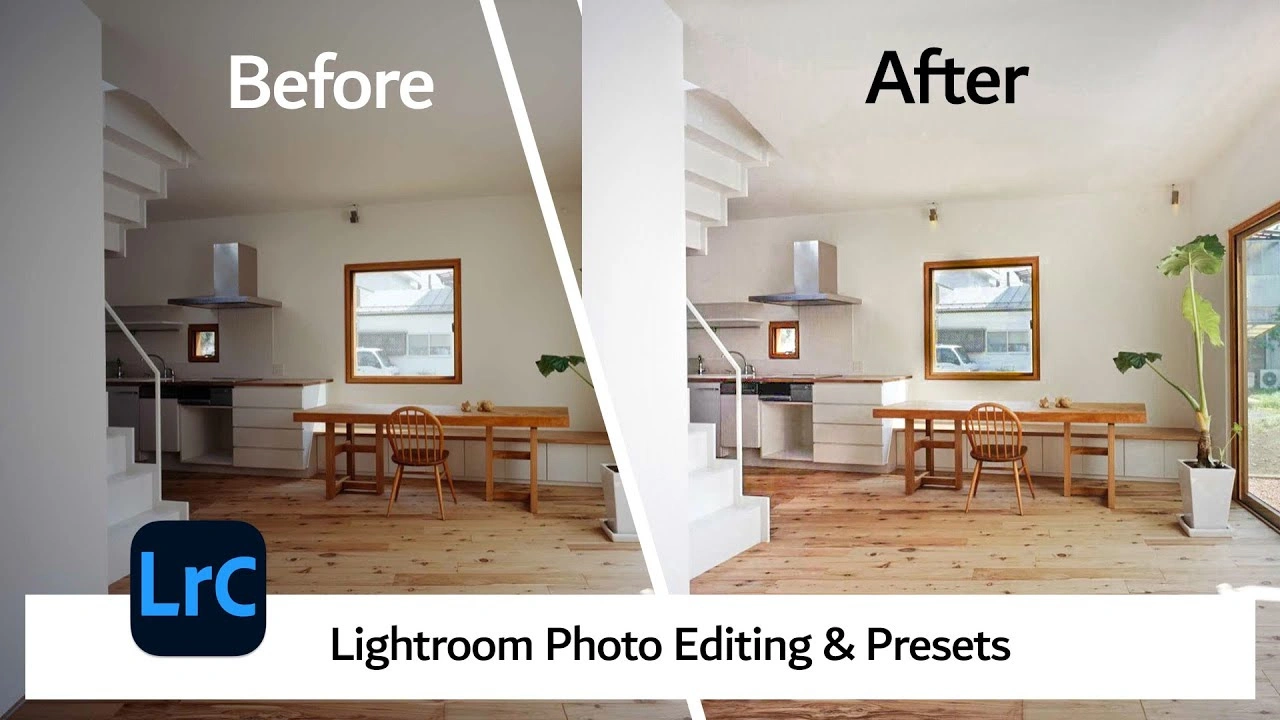
- Presets. A saved preset gives every listing a consistent starting point, so a client’s photos look like they came from one photographer.
- HDR Merge. Under Photo Merge, Lightroom combines bracketed exposures into a single file that keeps detail in both shadows and highlights. It is quick and often good enough for standard rooms.
- Masking. Lightroom’s masking tools include sky, subject, and background selection, gradients, brushes, and luminance and color range masks. These handle most local adjustments, like brightening a dark corner or cooling a warm wall.
- Upright and lens corrections. The Transform panel straightens verticals and corrects wide-angle distortion in a few clicks.
- Denoise. Lightroom’s AI-based noise reduction is useful for cleaning up dark files.
- Export presets. You can save output sizes and quality settings for MLS uploads, client galleries, and print.
Where Lightroom runs out of road: There are no layers. That makes it hard to blend several images by hand, and complex cleanup gets messy. Lightroom’s Remove tool works for small spots and simple objects. It struggles with anything big, like a cluttered countertop or a tangle of cables across a floor.
What Photoshop Does That Lightroom Can’t
Photoshop works one image at a time, but it gives you far more control over that image.
- Layers and layer masks. You can stack several exposures and paint in exactly the parts you want from each one. That is the foundation of a clean window pull.
- Advanced retouching. The Clone Stamp, Content-Aware Fill, and the Remove tool can handle things Lightroom can’t, like trash bins, cords, personal items, or a car parked outside.
- Perspective Warp and Adaptive Wide Angle. These tools fix stubborn distortion that the Upright function can’t fully solve.
- Blend modes and luminosity masks. These help with flash-and-ambient blending, where a flash frame and an ambient frame are combined manually for natural-looking color and depth.
- Sky replacement and generative tools. Photoshop can swap a gray sky or extend a background. These edits can change how a property looks, so check your local rules before using them (more on that below).
Photoshop opens raw files through Adobe Camera Raw, which uses the same core processing as Lightroom. So the tone and color adjustments feel familiar. The difference is what you can do after that step.
Where Photoshop falls short: It has no built-in way to organize a shoot, and editing dozens of photos one by one is slow. Actions and batch processing help, but they don’t replace Lightroom’s sync tools.
Lightroom vs Photoshop, Task by Task
Exposure Blending
Interiors are dark, windows are bright, and most real estate photographers shoot brackets to deal with it.
In Lightroom, you select the bracketed frames, run HDR Merge, and get a single file back within a minute or two. The results are usually clean if the shots are level and aligned. The trade-off is control. You can’t decide which frame contributes to which area of the photo.
In Photoshop, you stack the frames as layers and mask them by hand. It takes longer, but you decide exactly how the room, ceiling, and windows come together. This is how photographers avoid the flat, over-processed look that automatic merging can produce.
Use Lightroom for standard rooms with moderate contrast. Use Photoshop when a room has strong light differences or when the automatic merge leaves halos or an unnatural look.
Window Pulls
A window pull brings the view outside back into a blown-out window. This is the area where the two programs differ most.
Lightroom can help by darkening the window with a mask, but it can only pull back what the exposure captured. If the window is completely white, no amount of adjustment brings back the trees or sky.
Photoshop lets you place a darker frame under the room and mask it through the window area. The view looks real, with natural color and depth. It also gives you room to fix edges, window frames, and reflections.
If window views matter to the listing, and they often do in homes with water, city, or garden views, Photoshop gives better results.
Color Correction
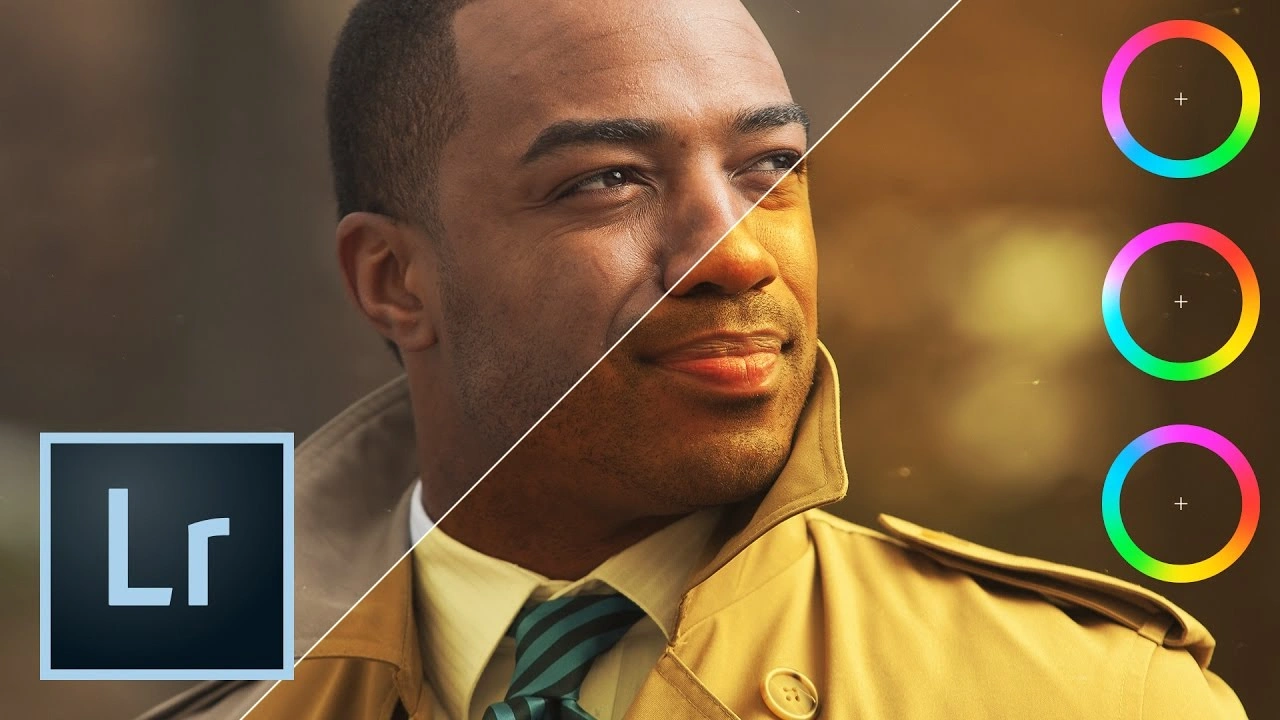
Both programs use the same core tools here: white balance, temperature, tint, and HSL adjustments. For yellow and orange casts, Lightroom is usually the faster choice. You can correct one photo, sync it to the rest of the room, and adjust from there.
Photoshop earns its place when color problems are localized. For example, an orange glow bouncing from a wood floor onto a white wall, or a wall that looks different in each corner. Layers and selective masks let you fix that patch without affecting everything else.
Whichever tool you use, keep materials looking like themselves. Buyers will see the real floors and walls in person, so the photo should match.
Straightening and Perspective
Lightroom’s Upright tool handles most vertical and horizontal corrections automatically. It is fast, and it works well for photos taken on a level tripod.
Photoshop’s Perspective Warp and Adaptive Wide Angle filter come in for harder cases, such as a room shot at an awkward angle or wide-angle distortion near the edges of the frame. Both tools involve cropping or stretching the image, so leave extra space around the edges when you shoot.
Removing Clutter and Distractions
This one is not a close call. Photoshop is better. Lightroom’s Remove tool can take out a small mark or a light switch plate, but it isn’t reliable for larger objects or for areas with fine patterns, like tile or wood grain.
Photoshop lets you work on separate layers, so mistakes are easy to undo and refine. For anything beyond small spots, it is the right tool.
Be careful about what you remove. Cleaning up temporary clutter, like a trash can or a cord, is generally acceptable. Hiding permanent features or defects, like damage, power lines, or a neighboring building, can mislead buyers. Rules vary by MLS and by country, so check the requirements for your market.
Speed and Consistency
If you shoot several listings a week, Lightroom’s workflow advantage becomes obvious. Presets and sync settings let you process an entire shoot in a fraction of the time Photoshop would take.
Photoshop is a precision tool. That’s ideal for a few hero images, but it becomes a bottleneck when applied to every photo.
Cost, Learning Curve, and Hardware
Adobe’s Photography plan includes both Lightroom and Photoshop, so you typically don’t need to choose between them on price. Check Adobe’s site for current pricing and plan details, since these change.
The learning curve is more of a factor:
- Lightroom is easier to pick up. The sliders are intuitive, and you can get decent results within a few sessions.
- Photoshop takes longer. Layers, masks, and blend modes are powerful but unforgiving until you understand how they work.
Photoshop can also be heavier on your computer, especially with large multi-layer files. If you work on an older machine, expect slower performance when handling high-resolution files.
A Practical Workflow That Uses Both
Most professional editors don’t pick one. They use each where it is strongest.
- Import and cull in Lightroom. Remove duplicates and missed shots.
- Correct the base image. Set white balance, exposure, lens corrections, and Upright.
- Sync settings across all photos from the same room.
- Merge brackets in Lightroom for standard rooms.
- Flag the difficult photos. These are the ones with problem windows, heavy clutter, or stubborn color casts.
- Send the flagged photos to Photoshop (Edit In > Photoshop) for window pulls, cleanup, and detailed blending.
- Return to Lightroom for final adjustments, noise reduction, and export.
This keeps Photoshop time for the images that need it. The rest of the shoot moves quickly through Lightroom.
Which One Should You Use?
Use Lightroom only if:
- You shoot mostly standard homes and apartments.
- You need fast turnaround on multiple listings.
- Your rooms have manageable light and your clients care more about speed than perfection.
Add Photoshop if:
- You shoot luxury or high-end properties where every detail counts.
- Windows regularly blow out and the view matters.
- You often need to remove distractions from a shot.
- You do flash-and-ambient blending.
Consider outsourcing if:
- Editing takes more time than shooting.
- Your quality varies from one listing to the next.
- You want to take on more shoots without hiring an editor in-house.
Common Mistakes When Choosing or Using These Tools
- Using Photoshop for everything. It is slower, and most photos don’t need it.
- Trusting automatic HDR merges without checking. Look closely at window edges and ceilings for halos.
- Editing photos in the same listing differently. One warm room and one cool room make the listing feel inconsistent.
- Over-correcting. Heavy saturation, over sharpening, and aggressive shadow lifting look fine on a phone but poor on a large monitor.
- Ignoring disclosure rules. Sky replacement, object removal, and virtual staging can be restricted or require disclosure depending on your MLS or local regulations.
Frequently Asked Questions
Can I edit real estate photos with only Lightroom?
Yes. Many photographers do. Lightroom handles exposure, color, straightening, and basic blending well. It is less effective for detailed window pulls and object removal.
Is Photoshop better than Lightroom for real estate photography?
Not overall. Photoshop gives more control on individual images, but Lightroom is faster for full shoots. Most professionals use both.
Do I need Photoshop for window pulls?
For clean, natural results, Photoshop is the better tool. Lightroom can darken a window somewhat, but it can’t recover a view that wasn’t captured or blend in a separate exposure with the same precision.
Which is easier to learn?
Lightroom. Its interface is simpler, and you can get good results relatively quickly. Photoshop takes more practice.
Can I use both programs on the same photo?
Yes. In Lightroom, right-click the photo and choose Edit In > Photoshop. When you finish, the edited version returns to your Lightroom catalog.
Should I use presets for real estate editing?
Presets are useful for consistency and speed, but treat them as a starting point. Every room has different light, so adjust each preset to fit the photo in front of you.
When does it make sense to outsource real estate editing?
When editing eats into your shooting schedule, when you need consistent results across many listings, or when you want to offer faster turnaround. A post production agency like Clipping Area can handle exposure blending, window pulls, color correction, and cleanup, so your time goes to shooting and clients.
Final Takeaway
Lightroom and Photoshop are not competitors in a real estate workflow. Lightroom is the engine for speed and consistency across a full shoot. Photoshop is the precision tool for the images that need extra care.
Start with Lightroom. Add Photoshop when you notice the same problems coming up, like windows you can’t recover or clutter you can’t remove. And if editing is holding back your business, handing it off is a practical option.
Want to spend less time editing? Clipping Area is a post-production photo retouching agency and complete image editing solution provider. Our real estate photo editing covers exposure blending, window pulls, color correction, perspective correction, and object cleanup, so every listing photo is ready to publish.